In Extensions Service Settings, you can manage extension Nimbus Features such as Codes and Conversation Context displayed on the My Sessions overview. Enabled features are immediately available to all Nimbus service team members.
Preconditions
Note that some extensions described below are only visible when you have the according license applied via the Service Administration. Refer to Nimbus Features for an overview and get in contact with Nimbus customer success if you require a demonstration.
💡 For Enterprise and Advanced Routing services, you need to have a Microsoft Teams team defined in order to see the Extensions tab.
Codes
Enterprise Routing Contact Center This Feature requires either an Enterprise Routing or Contact Center license on the service. Codes are selectable entries can be defined by service owners to appear in My Sessions or Nimbus Assistant to help users specify the contents or task conclusion during and after a call (After-Call Work).
Good to know
- Codes selected by users after completing task will be stored as part of historic reporting and made visible via BI Template.
- Unlike Tags a code must be predefined via this list to appear for users of the service. This also means that users of multiple services will see different codes for selection, depending on the service that was handling the task.
- The usage of codes as either “Secondary” or “Primary” is purely cosmetic, without system-relevant differences.
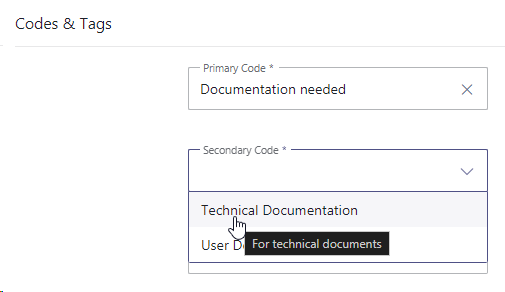
✅ Preconditions: Primary and Secondary Codes must be defined via Configuration beforehand and made available on the service's respective Organization Unit (or higher) before they appear in this list.
Learn more…
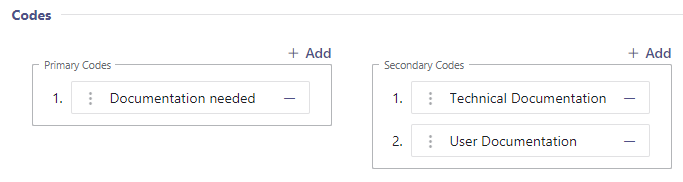
Once Codes are configured, click “Add” to add any available code to either the Primary or Secondary list. You can also sort the entries via drag-and-drop to change their order of appearance for users.
Nimbus Assistant
Nimbus Assistant Service Context
✅Precondition: All features described in the following requires Assistant to be installed and running on the user's PC.
Automatically open tabs
💡 Good to know: With Assistant, opening Nimbus in a browser (e.g. My Sessions) is not required anymore to get Conversation Context.
Assistant works standalone App and can also provide Conversation Context to users. As Administrator you can define multiple items Context items can be specified and applied in the Extensions Service Settings > Assistant section. These context items will open for all service users that have Assistant installed.

Service & User Templates as (dynamic) Context
In combination with opening regular “Conversation Context”, Assistant can run Service and/or User-specific Templates which trigger data requests or run local apps, web requests or scripts before or during an incoming call.
For Assistant this configuration is done as follows:
| Context target | Configuration items | How to Configure |
|---|---|---|
|
Single Users (Agents) (With Assistant License) |
Direct Templates are assigned and triggered by Assistant for an individual user, opened in their system-default browser during an incoming direct call. | ✅ Assistant Configuration. Once created, User Templates can be added via Assistant User Settings. |
|
All Service Users (Enterprise and Contact Center Licensed Services)
|
Service Templates are assigned and triggered by Assistant during an incoming Service call. | ✅ Assistant Configuration. Once created, Service Templates can be added via Extension Service Settings.1 |
| The regular Conversation Context (e.g. Websites) can also be opened in the default browser of your Service Users during an incoming Service call. | ✅ Configuration. Once created, Context Items can be added to the via Extension Service Settings > Assistant.2 |
Attendant Console
A single Conversation Context item may be added to show within Attendant Console. Note that you cannot add more than one Context item at a time, as it wouldn't fit into the sidebar.

Once you select an active session (card) in Attendant, the globe icon appears right-hand side. Clicking it will show conversation Conversation Context within the sidebar. ☝Note that general Website embedding limitations apply (see bottom of this page).

My Sessions
🔎 This section controls Widgets, Parameters and other information shown in My Sessions. We also offer a related Context Handover concept page for more detailed considerations on handling, displaying and transferring context in Nimbus.
Conversation Context
Context Preconditions
✅ Enterprise Routing Contact Center This Feature requires an Enterprise Routing or Contact Center license.
- Conversation Context items must be defined via Configuration beforehand and made available on the service's respective Organization Unit (or higher) before they appear in this list.
- Context can consist of static URLs, but also use dynamic Custom Parameters or System Fields and Parameters. If you want to learn more, visit Use Case - Defining and Using Conversation Context.
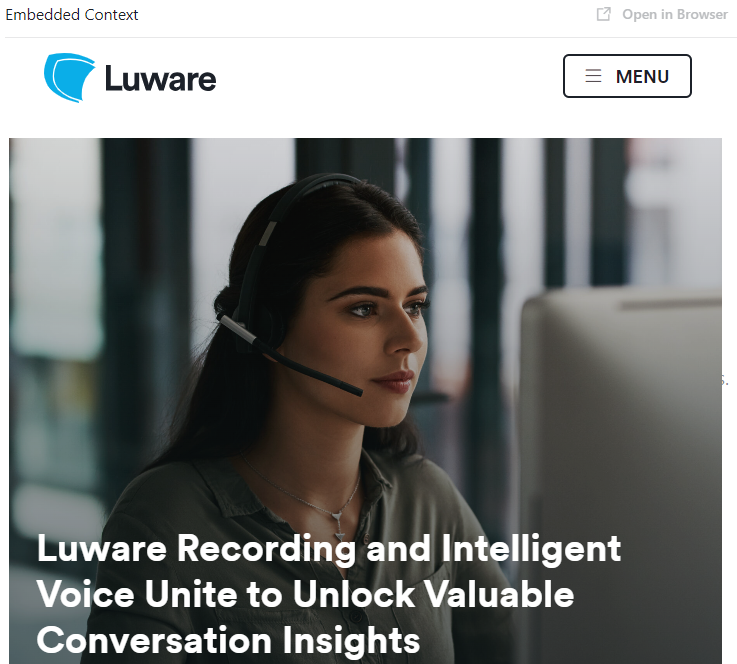
- Context can either be opened a extra browser tabs or embedded in My Sessions via the “Embedded Context” → Widget described further below on this page.
- Note that the extra browser tabs only open when you have Nimbus open in the browser OR the Nimbus Assistant app installed.
This section steers which (previously defined) Conversation Context should be shown on My Sessions during an incoming task, in the order specified. The usual business case are additional websites opening alongside with a new task, to assist the user their daily work (e.g. a CRM system, Search, Ticketing systems, Glossaries)

☝Please keep in mind that this setting applies service-wide. In high-frequency task scenarios, your users might get spammed with “Context” tabs.
- Context applied opens equally for all service users. For a more fine-tuned experience, consider using Service Templates in combination with Nimbus Assistant.
- Context will always (re)open on each incoming task, regardless if the user's browser window already had the same tabs open. If you want a more fine-tuned user experience, consider using Direct Templates in combination with Nimbus Assistant.
- Conversation Context opens task-agnostic, equally for any modality. When your service handles multiple modalities, keep the opened Context “baselevel” for either scenario.
Store Conversation Context Data
INC Store Context Data
GDPR After a service task has concluded, any historic session and customer context data – e.g. as shown in the My Sessions widgets – will by default not be stored by Nimbus.
While disabled:
⮑ the "Session Details" of any historic task records will show “Not Available” instead within My Sessions and Historical Sessions.
⮑ Previous custom Parameters / and Conversation Context items (e.g. Customer details or URLs dynamically retrieved and formed via Nimbus Power Automate Connector) will not resolve or open correctly anymore.
This storage behavior can be changed by enabling the “Store Conversation Context Data” in Extensions Service Settings:

☝ Note that the “Store Conversation Context Data” option is disabled by default as potentially sensitive caller data can appear in historical records and seen by Administrators (e.g. via Sessions List). Therefore…
- … read the consideration below to understand its effects.
- … note that this setting has no retroactive effect, so only the data collected after enabling the feature will get stored for the retention period.
- … note that the setting must be enabled individually per service (OPT-IN).
🤔What happens when I enable this?
☝Task information / Session detail data is stored per service session on call termination (either transfer by workflow or user).
- Within the UI of My Sessions and Historical Sessions
- Custom (user created) Parameters
- System Fields and Parameters (both “Custom” and "System" parameters like Call ID, Service UPN, etc.)
☝ Restrictions on concluded sessions (e.g. within My Sessions) apply as follows:
- ... the "Embedded Context widget" will resolve with the currently configured URL with a previously saved call information. This means that also historic sessions will use the link currently configured in the Extensions Service Settings .
- ... the separate "Open Context" link remains clickable if at least one Conversation Context URL is currently configured.
- ... the "Session Details" widget will still show Custom and Customer parameters if available.
☝ Not stored (regardless of setting) are:
- Default "My Session Parameters" user data is not stored as it is always retrieved dynamically from the internal user directly of your Tenant.

🤔What happens in service transfer scenarios?
Nimbus always stores live context on transfer to services (either initiated by workflow or user). The "Store Conversation Context Data" option will have no impact there.
☝ However, enabling the "Store Conversation Context Data" setting will cause such live context data to be stored as historical record after call termination. This also applies on each transfer between services, creating a historical record entry for each service that has the setting enabled.
In an example transfer scenario this may cause historical data to “accumulate” between services, as data gets updated and appended.
Example - Transfer from Service A to B to C:
| Parameter | Service A ► transfer to | Service B ► transfer to | Service C |
|---|---|---|---|
| Customer Name | John Doe | John Doe | John Doe |
| Spoken Language | German | <Not Relevant> | <Not Relevant> |
| Gender | <Not Relevant> | Male | <Not Relevant> |
| Ticket ID | #1111 | #3151 (overwritten Ticket Parameter) | <Not Relevant> |
| “Store Conversation Context Data” enabled | ✅ | ⬜ | ✅ |
| Stored Historical Sessions data shown | John Doe (1) German Not used #1111 |
John Doe (1) Not available (not stored) Not available (not stored) |
John Doe (1) German (from Service A) Male (from Service B) #3151 (from Service B) |
(1) The user name will always be resolved from a UPN / PSTN when it was found within the existing O365 user directory.
🤔How long is data being stored?
Caller info is updated on a “terminated” workflow Trigger Events and stored for a maximum of 30 days for the last available service session (in case of transfers). Conversation Context data will also be stored for failed, aborted or “killed” calls.
☝ Note: After 30 days the data is cleared. This also happens when either the Service or Tenant is being unprovisioned (removed from Nimbus Clusters) while Uninstalling Nimbus.
🔍 Whitepapers: You can also learn more about the data retention policy in our whitepapers, available in the Documents section.
⮑ Customer-Side Backup responsibility: If you wish to store mission-critical or personal session data permanently, you need to do so during an active session and within a system of your choice (e.g. a CRM or Database).
Keep Custom Context Parameters on transfer
INC Context Settings
As a Nimbus session gets transferred between multiple Services and Users, related System Fields and Parameters automatically carry over. In addition to this, a separate Setting allows to steer if additional Custom Context Parameters should be kept during a transfer from this Service to Users as well.

☝Note that the “Keep Custom Context Parameters on transfer” option is enabled by default for both Services (currently fixed) and Users (optional).
🔎 Custom Context Parameter Transfer Settings
The following Diagram is meant to illustrate the effects of context-related Service settings.
- Each Service can steer these settings individually. This means that Session Data storage and handover settings from a Service A are in effect until a new (receiving) Service B decides to handle the (received and potentially updated) data differently.
- Assuming your starting point is a Service A:
- Call Data & System Data will always transfer to Services and User.
- Custom Context Parameters will always transfer to Services.
- Custom Context Parameters will only transfer to Users if enabled on the originating Service. If toggled off, they will be nulled/reset to defaults.
-
The Nimbus Power Automate Connector can react to various Trigger Events (e.g. Workflow Started, Parameter Updated, Connected to User).
- By doing so, parameters within a specific scope (Service Session or User Session) can be updated, anonymized, or cleared.
- In the Sessions List this may result in different parameter values being shown for each interaction, as each session can have their context updated via separate Flow Actions.

INC Context Handover Limitations
The transfer of Custom Context Parameters and System Fields (Custom Fields) works under the following scenarios:
| Transfer FROM… | …TO User | …TO Service |
|
… User on |
✅ Call Data + Customer.Custom Fields ⬜/✅ Custom Context Parameters only if enabled in respective Extensions Service Settings > “Conversation Context”. |
✅All Call Data + Custom Fields, System Data and |
| … User, during ongoing Consultation | ❌ No Context gets transferred.2 |
✅All Call Data + Custom Fields, System Data and |
| … Service via Workflow “Transfer" activity. | ❌ No Context gets transferred.1,2 |
✅All Call Data + Custom Fields, System Data and |
CONTEXT TRANSFER LIMITATIONS
The following Context Transfer limitations are known. We are actively working to improve this in a future update.
1 Context Handover via ”Transfer" Workflow Activity": A Custom Context Handover from within a Service workflow to any target will not work.
2 Context Handover via UI buttons to Users during consultation calls is currently not supported, partially due to MS Teams conference limitations.
→ If you require Context to be transferred, use Blind Transfer or Safe Transfer scenarios respectively.
Widgets
Widgets extend the My Sessions UI with additional functionality.
✅ Individual Preconditions: Note that widgets rely to features which are separately licensed. The widget toggles may not show in your UI if preconditions are not met.
The following widget settings can be configured:
| Setting | Description |
|---|---|
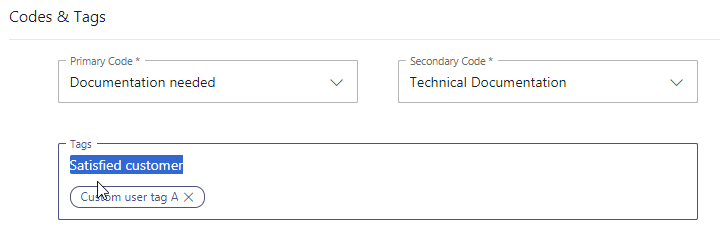
Codes and Tags |
✅ Preconditions:
💡 Tags can be freely defined by users during incoming calls. Suggestions will be auto-completed based on previously provided tags.
 |
Embedded Context |
✅ Preconditions:
 ☝Please note:
|
Companion |
Displays a widget to show various Companion related features, further configured in Companion Service Settings: 💡This widget is not only relevant for Companion features on human-agent calls: it is also where a "Virtual User - Summary" tab appears once an interaction is escalated from a Virtual User (bot) to a human agent. Enabling this widget is therefore also required to surface that handed-over Virtual User context, even on services that don't otherwise use Companion Transcription or Summarization for human-agent calls. TranscriptionThe Transcription feature transcribes call contents using Voice-to-Text capabilities. ✅ Preconditions:
Transcription processing in ACW💡If you have ACW configured in Distribution Service Settings and need it for session closure, you may need to wait for an ongoing saving process of your session's transcription to finish.  Live CaptionThe Live Caption feature converts ongoing call participant voices directly into text, using Voice-to-Text capabilities. ✅ Preconditions:
SummarizationSummarization processes the transcript to generate a summary containing the most important aspects of a session. ✅ Preconditions:
Virtual User SummaryShows a structured summary of the customer's prior Virtual User conversation, once the interaction is escalated to a human agent. This lets agents immediately see what the customer already explained, without asking them to repeat themselves. ✅ Preconditions:
💡This is a separate concept from the "Conversation Context" described above on this page: Conversation Context surfaces external websites or CRM data, while Virtual User Summary specifically carries over what the customer already told the Virtual User during the same interaction. 💡Hiding features in the backgroundIf you want to process these features in the background (e.g. via Power Automate Use Cases), you can toggle it off My Sessions, effectively hiding it from the Nimbus User Portal. |
Session Details |
✅ Preconditions: Basic session details can be shown for any service, but extended license features (→ see below) are available. 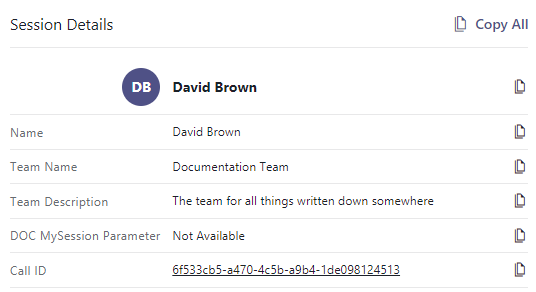
✅ Extended License Features: The amount of available Custom Parameters is greatly extended with higher Nimbus Feature license tiers. Advanced Routing✅ Advanced Routing My Session Parameters:
 💡Good to Know: If you remove any of the existing entries, they will re-appear in the "My Session Parameters" list and can be re-added. Enterprise Routing / Contact CenterEnterprise Routing Contact Center Additional System Fields and Custom Parameters for your "Session Details" become available with an Enterprise Routing or Contact Center license on your service:
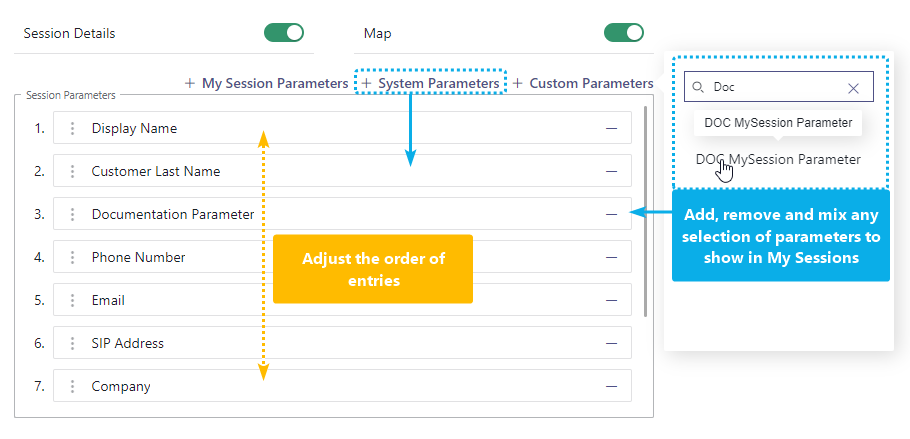 🔎Notes on Parameters in Session DetailsAny custom/writable Custom Parameter data is retrieved using the Microsoft Power Automate Connector.
🔎 Example - Original Called NumberThe Original Called Number and Original Called Target Type system parameters can be added to your My Sessions view to give agents immediate context about where a call originated.
Typical use cases:
🔍 Both parameters are read-only and set once when the call enters Nimbus. See System Fields and Parameters for more information. License Downgrade: Note that a service License downgrade is being prevented when you still have custom or system parameters in use. Before attempting to downgrade your service license, remove additional parameters first and return the view to "My Session" defaults. |
Map |
✅Preconditions: Map locations are only shown when previously retrieved from an external directory, e.g. by using the Microsoft Power Automate Connector to look up caller data.
⮑ When successfully retrieved, an available a google-maps location will be shown based on either the address or IP information of the caller. Depending on the available info this map will provide more specific or general details. |
General Limitations
INC Website Embed Limitations
WEBSITE EMBEDDING LIMITATIONS
Some websites prevent IFrame embeds on remote sites, which cannot be circumvented. When you try to embed such protected URLs, errors like 401 (unauthorized) or a "Refused to Connect" message will be shown instead of your desired output.
✅ Possible Workarounds:
- If available, consult your external source website support to check if any iframe-referrals are allowed. Some services offer specialized data widgets for that purpose or provide authorized token-URLs that you can use.
- If you have access to whitelists on your source website, try to allow the *.luware.cloud domain for external embedding / referencing.
Show more technical information...
There are two types of HTTP headers in websites that control iframe loading:
X-Frame-Options: DENY
Content-Security-Policy: frame-ancestors 'none'
The HTTP Content-Security-Policy specifies valid parents that may embed a page using <frame>, <iframe>, <object>, or <embed>.
A website header called x-frame-options specifies the access prevention, determined via the following values:
- if set to DENY the site isn't allowed to be loaded in iframe
- if set to SAMEORIGIN the page can only be embedded in a frame on a page with the same origin as itself.
- if set to ALLOW-FROM the page can only be displayed in a frame on the specified origin. This only works in browsers that support this header.
🔍 Related Sources: