The "Users" view allows administrators to search, create and configure Nimbus users. It consists of the following elements:
- A user list with search, filter and create options. 💡The availability of Nimbus users is directly tied to your (Azure) user directory. You can search users by common or unique criteria such as @domain or their O365 ID.
- A user detail view, opened when clicking on or creating a user. The view is distinguished by several tabs as explained further below.
Filtering
|
When your current Nimbus view offers filters:
When filters are already active: Unless “All” is shown as filter content, your results are filtered.
|
 |
Overview - User Listing
The table of existing users lists the following details:
| Column | Description / Purpose |
|---|---|
| Display Name | Clear Name of the user - as shown to other users |
| Organization Unit |
All items (including services) in Nimbus are structured into Organization Units (OU). The user's OU also determines:
|
| UPN | User Principal Name to which calls get forwarded to by Nimbus services. |
| O365 ID | Unique Azure / O365 ID under which the user is identified by. |
| Department | Department field (blank if not specified within Azure). |
| Attendant Console enabled | Shows if an Attendant Console license is enabled for this user. This is a separate Luware application that can also run within the Nimbus Portal UI. |
| Active Profile | Shows the currently active Responsibility Profile for that user. Primarily used to indicate Contact Center participation. |
| Number of routing services | Shows the amount of services that this user is a part of. |
Managing Users
Nimbus retrieves all users from your local O365 user directory. Creating a user means that Nimbus assigns User Roles and Groups for that user, as well as define criteria used from call distribution to that user.
Creating Users
Create User
In order to allow a new User access to the Nimbus UI (either Portal or Admin functionality), the User needs to be made known as a configurable and referable data entity in Nimbus.
💡Access to your User Directory (Entra ID)
Precondition: As stated in our Nimbus App Permissions Nimbus uses delegated permissions to search for Users in your Microsoft Entra ID. If these permissions are granted by a Tenant Administrator, any of the existing Nimbus Admin Roles – e.g. a delegated Tenant Administrator – can search for and add a User using their display name.

💡Regardless of the way you add Services and Users to Nimbus, your Entra ID User directory remains the "source of truth".
⮑ Once the User is added, Nimbus uses the O365 ID for internal mapping and User identification. All other Data will be synchronized (UPN, First Name, Last Name, Avatar, etc.) and made available for internal search, e.g. via Attendant Console to perform call transfers.
Considerations before creating Users
Any User that already exists in any Nimbus Service does not need to be recreated / added again. Their user account be upgraded for further licenses and Use Cases. A User can act in multiple different Roles simultaneously.
🤔 Does Nimbus create or change any existing Users?
Nimbus by itself does not create new Users in your directory, nor will it write over any existing fields. Users are authenticated using the Organization Units and Role Access Concept, with Entra ID (O365 ID) and Single-Sign-On details as verification “source of truth”.
Service to User assignment
User Assignment Types
INC User Assignment Types
Each Nimbus Service can be of a different User Assignment Type that determines how Users are associated to this Service:
- MS Teams-based: Directly tied to the Team itself in MS Teams, determined during Service Provisioning. Users get automatically added and synced to a Nimbus Service.
- Skill-based: Applies for manually created Services via Nimbus Service Administration. Requires skill-assignment to Users you manually assign to the Service from within your Tenant directory.
- None: Primarily used for IVR or first-level redirection Services. This Service has no Users and is therefore primarily configured by any Administrator.
☝ Important to know: The User Assignment Type setting is fixated when a Service was either provisioned via MS Teams or manually created via Service Administration, e.g. either for Customer IVR or User skill-based task distribution purposes. A switch between MS Teams-based and Skill-based Services is not possible due to how individual Users are configured and how related Nimbus Features operate.
🤔 Is the User Assignment Type tied to the Service Type / License?
Indirectly, yes. While User Assignment itself is not technically bound to Service Types and related Nimbus Features, User permission handling and Nimbus Task distribution underlies technical restrictions, primarily dictated by how MS Teams handles its channels and roles.
| User Assignment | Advanced Routing | Enterprise Routing |
Contact Center |
Description |
|---|---|---|---|---|
| MS Teams-based | ✅ | ✅ | 🔍 Relevant if you want to stick to MS Teams-based User sync but use Contact Center Features | MS Teams-based User assignment is the most common scenario for new Advanced Routing and Enterprise Routing licensed Services. Nimbus Portal Roles are automatically inherited from the role in the MS Teams channel, minimizing the administrative effort to onboard and configure new Users. |
| Skill-based1 | ❌ | ❌ | ✅ |
The main use case for Contact Center Services is setting up Distribution Policies to escalate calls based on Skills and Responsibilities. The Distribution Order guarantees that Users get selected in a very targeted manner. With adjustments of their skills and Duty Profiles Users can opt-in or out of certain distribution policies, e.g. based on time of day, workload, current responsibilities. Adding and removing of Users is very flexible, e.g. across departments and even outside of any MS Team-based constraints. |
| None1 | ✅ | ✅ | ✅ | Services with User assignment type "none" are generally used for IVR or automated redirection. They can be created manually and outside of MS Teams channel restrictions. |
Switching between User Assignment Types
1 Switching the User Assignment Type is possible outside of MS Teams-based context. For example, you can convert a “Skill-based” Service to type “None”, e.g. when you decide to delegate Users to different Services.
☝However, before doing so, please note the following effects:
- When switching User Assignment Type to “None”, all previous Settings made within the Service Distribution Tab are discarded and will be at their defaults, should you decide to switch back.
- On “None” User Assignment Type setting, Workflows configured in the Modalities Tab will show warnings. Activities that involve any task distribution to Users (e.g. “Queue”) will automatically be skipped over. This may result in error scenarios during an incoming call.
→ We therefore highly recommend checking your Workflows right after converting your Service's User Assignment Type.
🤔 How does the User Assignment Type affect my Service operation?
The User Assignment Type greatly determines how the Service (and Users) are managed. This also determines, which Features and Data are available to Users, and how granular the Role-based Access Concept (RBAC) can be implemented by Administrators.
💡 MSTeams-based Services are tied to the Team itself, but not to a particular channel within that team.
- The Service name and all channel Users are in sync with and actively used by Nimbus for task distribution. You can select one specific
publicchannel to which the Service will post Adaptive Cards for Voicemails or call pick-up notifications. - Other than that, Nimbus will not impact other channels or functionality. You can "add" the Nimbus app tab to every available channel of a Team, if you want, but it will always only display the same Team statistics.
- Very simple User Management with a fixed set of Portal Roles that grant access to Nimbus functionality.
💡 Skill-based Services allow Users to participate in multiple Services simultaneously.
-
The individual Services are NOT tied to using MS Teams channels as central point of communication and User management.
- The removal of a dedicated Teams channel also removes the possibility for a single channel for Voicemails, as it would cause data access and GDPR compliance risks.
-
Skill-based Services add flexibility, but also complexity:
- Users on skill-based Services are managed via Agent Service Settings per Service. This can be done by any Team Owner.
- Optionally Users can get Skills and Responsibilities assigned for escalated Service task distribution. A Distribution Policy assigned to each Service determines how new incoming tasks are distributed among Users, depending on their responsibility and expertise.
- Allows to expand the Portal Roles with additional Supervisors and/or preferred Users.
- 💡 Good to know: Users are also not "Active" on skill-based Services per default. Instead, they control their own Service availability via configurable Responsibility Profiles.
💡None - Services with no Users assigned:
- These Services do not have Users nor a specific MS Teams channel, and therefore don't use most of the abovementioned features. They only act as “gateway”, e.g. to route customers to actual Services via IVR.
🤔 Does the User Assignment Type affect available Features?
Yes, because certain features cannot operate “outside” of a given MS Teams context in order to steer User access to Service data and functionality.
Here are some examples on how various features differ based on User Assignment Type:
| Feature | Feature | MS Teams based | Skill- based | None |
|---|---|---|---|---|
| Workflow configuration | Adaptive Cards | ✅ | - | - |
| Voicemails | ✅ | - | - | |
| Service Settings | Configurable Voicemail channel | ✅ | - | - |
| Extensions tab | ✅ | ✅ | - | |
| Conversations Distribution | ✅ | ✅ | - | |
| Setting of a Distribution Policy | - | ✅ | - | |
| (New) User “Active” settings | ✅ | - | - | |
| Reporting section | ✅ | ✅ | - | |
| Editable "Name" field on Service Settings | - | ✅ | ✅ | |
| Frontend UI | "Active" toggle for Users | ✅ | - | - |
| Users switching Service availability via Duty States / Responsibility Profiles | - | ✅ | - |
🤔 When should I create Nimbus Users manually?
This depends on the Nimbus Features you want to enable for your Users. Here are some example Use Cases:
| Use Case | Description |
|---|---|
| Contact Center Agent | In case you want to create a Contact Center service without a direct MS Teams "Team" connection you can add Users manually by searching within your O365/Azure User directory. By individually assigning Contact Center licenses to those Users you enable Skills and Responsibilities for skill-based distribution within any (future) Contact Center service type. |
| Frontpage Support / First Contact | Some Users may not directly participate in a Nimbus service, but use Luware Interact to directly communicate with customers via embedded Website widget. These Users need to be added to the Nimbus list before setting up Interact. |
| Custom Role | You may want assign a Contact Center license to a single User, e.g. to grant them Custom Roles valid within specific Organization Units. This gives you full control over which permissions this User actually has. |
💡Access to Service data: Manually added Users will get login access to the Nimbus Portal, but may not see any relevant reporting data until they are part of at least one service.
Adding a User manually
The default way to create a new User in Nimbus is as follows:
- Access the Admin Portal > Users List and click “Create New”.

- In the creation dialog, search for the O365 Display Name or UPN of the User, as specified in your Microsoft 365 Admin Center > Users section.
- Specify an Organization Unit for this new User.
- Click “Create” and wait for the process to complete.
⮑ The new User is now ready to log into the Nimbus Portal. Note that Portal Roles are granted when the User is added to a Service, either via MS-Teams (as part of the related Team), or manually in a Nimbus Contact Center Service.
☝ Knowing about Organization Units: The Organization Unit (OU) concept is essential throughout Nimbus. The OU will determine where your User is visible for selection within Nimbus configuration-related UIs, e.g. when other Service Owners want to search for and add the User to their roster.
💡 Good to know: You can change the OU of a User later at any time if necessary. Any existing references (e.g. Nimbus Service assignments) will remain intact until the User is removed (either by a Service Owner or from your Entra ID directory).
Adding User through MS Teams-based Service
After following the Service Provisioning steps you can add Nimbus directly via MS-Teams. The corresponding Users will be automatically added into Nimbus and get assigned Portal Roles automatically.

Manual User assignments
💡 Good to know: Nimbus knows multiple ways of User Assignment. As an example, you can manually create additional Nimbus Services which are not tied to an MS Teams channel. Such services can share Users across multiple departments or regions (Contact Center), or have no Users at all (e.g. IVR and rerouting Services).
Manual User assignment allows for more detailed Portal Roles
🔎 For more information refer to:
User Provisioning via Nimbus API
When adding a User via Nimbus API, there is no search possible in your Microsoft Entra ID. You need to retrieve and use O365 IDs manually, which are then sent to Nimbus. Refer to Step 3 - Using the API for instructions on how to create empty Users:
Learn more….
Nimbus API
The Nimbus Public REST API allows you to manage Nimbus Users, Services, Virtual Users, and License contingencies. This page describes the setup and usage procedures.
PRECONDITIONS
💡If you have already set up Azure and Nimbus for using the API, you can directly go to → “Available Methods" chapter.
This page covers the following topics:
- Check if the API was enabled on your Provisioning Tenant Settings. This feature is enabled by a Luware System Administrator.
-
Set up the Nimbus App Registration and necessary API Permissions in Azure.
As a Tenant Administrator you can perform these steps below in parallel.
Step 1 - Azure Setup
✅ Tenant Administrator: The following steps need to be done with Tenant Administrator privileges. You will grant some of the Nimbus App Permissions to be used later via the API.
Create App registration
🔎 Also see: Quickstart: Register an application with the Microsoft identity platform | Microsoft Learn
- Go to Portal.Azure.com
- In your Tenant, Create an App registration, e.g. “My Nimbus App”
- Leave the other options as they are.

Grant API Web Access Permissions
🔎 Also see: Configure an app to access a web API - Microsoft identity platform | Microsoft Learn
✅ Tenant Administrator: Note that a Nimbus App must be registered at this point.
- Go to "API Permissions"
- Request new API permission by clicking “Add a permission”.
- Search for "Luware"
- Select the entry “Luware Nimbus Login” from your Nimbus App
- Select Application Permissions
- Select the following role permissions1:
Provisioning.User.CreateProvisioning.User.DeleteProvisioning.User.ReadProvisioning.Service.CreateProvisioning.Service.DeleteProvisioning.Service.ReadProvisioning.Tenant.ReadProvisioning.Workflow.ExportProvisioning.VirtualUser.ReadProvisioning.VirtualUser.UpdateProvisioning.VirtualUser.Create
- Back In API Permissions, click “Grant Admin Consent for <customer tenant name>” → Green checkboxes signal the successful permission grant.
1 ✅Regular Permission check: Note that Nimbus API application may occasionally require new permissions to be granted, as new functionality gets communicated in our Latest Release Notes and the descriptions on this page. We recommend to check the permissions on a regular basis, depending on the API functionality you want to use on your Tenant.
💡Good to know: The Nimbus API revolves around manipulating ONLY Nimbus user and service details relevant to Nimbus itself. It can’t remove users in the O365 tenant and will only remove or add users reflected inside the Nimbus User Administration UI.

Authentication
There are multiple ways to authenticate with your newly created Azure Application. The authentication method doesn't matter for Nimbus and depends on your Use Case and external system. We therefore only provide some general recommendations and refer you to the Microsoft documentation.
Public Client Application
🔎 From: Public client and confidential client applications | Microsoft Learn
Public client applications run on devices, such as desktop, browserless APIs, mobile or client-side browser apps. They can't be trusted to safely keep application secrets, so they can only access web APIs on behalf of the user. Anytime the source or compiled bytecode of a given app is transmitted anywhere it can be read, disassembled, or otherwise inspected by untrusted parties, it's a public client. As they also only support public client flows and can't hold configuration-time secrets, they can't have client secrets.
🔎 From: Public client and confidential client applications | Microsoft Learn
After determining the type of client application you're building, you can decide whether to enable the public client flow in your app registration. By default, allow public client flow in your app registration should be disabled unless you or your developer are building a public client application and using the following OAuth authorization protocol or features:
OAuth Authorization protocol/Feature Type of public client application Examples/notes Native Authentication Microsoft Entra External ID application that requires full customization of the user interface, including design elements, logo placement, and layout, ensuring a consistent and branded look. Note: Native Authentication is only available for app registrations in Microsoft Entra External ID tenants. Learn more here Device code flow Applications that run on input-constrained devices such as a smart TV, IoT device, or a printer Resource owner password credential flow Applications that handles passwords users enter directly, instead of redirecting users to Entra hosted login website and letting Entra handle user password in a secure manner. Microsoft recommends you do not use the ROPC flow. In most scenarios, more secure alternatives, such as the Authorization code flow, are available and recommended. Windows Integrated Auth Flow Desktop or mobile applications running on Windows or on a machine connected to a Windows domain (Microsoft Entra ID or Microsoft Entra joined) using Windows Integrated Auth Flow instead of Web account manager A desktop or mobile application that should be automatically signed in after the user has signed into the windows PC system with a Microsoft Entra credential
Confidential Client Application / Client Secret
🔎 From: Quickstart: Register an application with the Microsoft identity platform | Microsoft Learn
Sometimes called an application password, a client secret is a string value your app can use in place of a certificate to identify itself.
Client secrets are considered less secure than certificate credentials. Application developers sometimes use client secrets during local app development because of their ease of use. However, you should use certificate credentials for any of your applications that are running in production.
- Select your previously registered Nimbus App.
- Go to Certificates & secrets > Client secrets > New client secret.
- Add a description for your client secret.
- Select an expiration for the secret or specify a custom lifetime.
- Click Add.
-
🧠 Record the Secret's value for later use within the Nimbus API.
☝This secret value is never displayed again after you leave this page.
From: Public client and confidential client applications | Microsoft Learn
Confidential client applications run on servers, such as web apps, web API apps, or service/daemon apps. They're considered difficult to access by users or attackers, and therefore can adequately hold configuration-time secrets to assert proof of its identity. The client ID is exposed through the web browser, but the secret is passed only in the back channel and never directly exposed.
Step 2 - Configure Nimbus
✅Checklist:
🧠 For the next steps in Nimbus you will need the Application ID of your previously registered Nimbus Application.
- Log into Nimbus Admin Portal.
- Go to Tenant Administration > Provisioning Tenant Settings > “Application Permissions”.
- Click on “Add”.
-
Fill in the 🧠 Azure Application ID from → Chapter: Step 1 above.

- Define the Organization Units scope under which the Nimbus API will have access.
- Save and Close.
- Still within Admin Portal, Go to the Configuration > Organization Units
- Open your Organization Unit Entry and note the GUID in the browser address bar as follows.
🧠 Repeat this step and note down any OU ID you wanna create users in later using the API.

Step 3 - API Authentication and Usage
Now your API should be ready to use.
💡In this example we authenticate using a Confidential Client Application using Client Credentials. Of course you can use any other means of authentication as described in → Chapter: Step 1 > Authentication above.
✅Checklist:
- 🧠You will need the Nimbus Application ID and the Secret of your App
- 🧠You also need the Organization Units ID to make API calls
- ✅ Additionally, you need the O365 IDs of the (future) users you want to provision.
- Create token using OAuth 2.0. For example, to get a token using Client Credentials, choose the following:
- Grant type: Client Credentials
-
Access token URL:
https://login.microsoftonline.com/<tenant id>/oauth2/v2.0/token1 - Client ID: 🧠 Application ID of your app
- Client Secret: 🧠 As created in your app
-
Scope:
https://portal.{geography}-{number}.luware.cloud/.default2 - Client Authentication: Send as Basic Auth header
🔎Footnotes
1 Head to your Tenant Administration and check the URL in the browser address bar. Look for the part starting with “tenantId=” tenantId=9fce70af-a632-49ca-bc0d-53db5a21c5b3
2 Note that API authentication and usage is done via the Nimbus Frontend Portal URL (not Admin). The geographical location part of the Portal URL depends on your Nimbus Cluster. When you log into the Nimbus Frontend Portal you will be redirected to the right cluster. Check the list below as a reference:
INC Nimbus Portal URLs
| Switzerland 01 | https://portal.ch-01.luware.cloud/ |
|---|---|
| Switzerland 02 | https://portal.ch-02.luware.cloud/ |
| Germany 01 | https://portal.dewe-01.luware.cloud/ |
| Germany 02 | https://portal.dewe-02.luware.cloud/ |
| United Kingdom 01 | https://portal.ukso-01.luware.cloud/ |
| Australia 01 | https://portal.aue-01.luware.cloud/ |
| West Europe 01 | https://portal.euwe-01.luware.cloud/ |
| East United States 01 | https://portal.use-01.luware.cloud/ |
✅ Make sure to configure your web proxies to allow access to these domains or whitelist the complete *.luware.cloud domain.
Available Methods / Commands
✅Before you start: API calls use the Nimbus Portal URL as an endpoint. This URL depends on the geographical location of your personal Nimbus Cluster. When you log into your Nimbus Frontend Portal you will be redirected to the right cluster. → See 🔎Footnotes above.
💡 Good to know: Besides managing individual Users and Services by ID, the Users and Services tabs below also let you list every User or Service within an Organization Unit (as JSON or CSV), and the new Organization Units tab lets a script discover which OU IDs it is authorized for.
Users
Users
💡Good to know: The Nimbus API revolves around manipulating ONLY Nimbus user details relevant to Nimbus itself. It can’t remove users in the O365 tenant and will only remove or add users reflected inside the Nimbus User Administration UI.
CREATE a new User
| POST Create User | https://portal.{geography}-{number}/api/public-api-next/user |
| Description |
Creates a new empty (unconfigured) Nimbus user, based on the Organization Unit and O365 ID provided from existing users on your tenant. ☝Note: Only one user can be added per transaction. |
| Notes | ✅ Precondition: You require the O365 ID of an existing User on your Tenant and the 🧠 OrganizationUnit ID from the (permitted) OU (→ Chapter: Step 2 above) |
| Body | |
| Response Codes |
|
GET Details of Existing User
| GET User Details | https://portal.{geography}-{number}/api/public-api-next/user/{userO365Id} |
||||||||||||||||
| Description |
Requests the current configuration of an existing/template user. ☝Note: Only one user can be requested per transaction. What is being returned?The following user details
|
||||||||||||||||
| Notes | ✅ Preconditions: You need to provide the O365 ID of EXISTING users in the request body. Visit the User Administration > User Listing to retrieve it. | ||||||||||||||||
| Body | |
||||||||||||||||
| Response Codes |
|
GET List Users in an Organization Unit
| GET List Users | https://portal.{geography}-{number}/api/public-api-next/user?organizationUnitId={organizationUnitId}&includeDescendants={true|false}&skip={skip}&take={take}&format={json|csv} |
| Description |
Lists every User configured within an Organization Unit, optionally including its subtree, together with each user's full configuration — the same detail level as → GET Details of Existing User, returned for many users at once. ☝Note: Choose the response format via the format query parameter: |
| Query parameters |
|
| Notes |
✅ Preconditions: Uses the existing
|
| Body | |
| Response |
JSON ( CSV ( 💡 Every response also carries these headers, reporting how many Users were requested vs. actually returned:
|
| Response Codes |
|
GET License Usage
| GET Get License | https://portal.{geography}-{number}/api/public-api-next/user/license-usage |
| Description |
Performs a check in available Nimbus licenses, as also reflected in the Admin UI: License Management. Returns details for all licenses:
|
| Notes | ✅ Preconditions: API Request should be based on the Tenant ID. |
| Body | |
| Response Codes |
|
COPY an existing User
| POST Copy User | https://portal.{geography}-{number}/api/public-api-next/user/copy |
||||||||||||||||
| Description |
Creates a copy of an existing user, using their Nimbus User settings as template. ☝Note: Only one user can be copied per transaction. What is being copied over?Copied over are the following tabs and their settings:
|
||||||||||||||||
| Notes |
✅ Preconditions: You require both the O365 ID of EXISTING (Template User) the NEW (copy target) user for the request body.
|
||||||||||||||||
| Body | |
||||||||||||||||
| Response Codes |
|
☝Attention: Copied Users are immediately available to Nimbus
Keep in mind that – once Nimbus “learns” about a newly added user – User State checks will be immediately performed to potentially distribute newly incoming Service tasks. Depending if your source user was a productive one, the new user – while Online in MS Teams – may immediately be considered as “selectable” by Nimbus and receive calls and tasks via MS Teams, even without Nimbus being in focus for them.
🔎 The requirements for a “selectable” Nimbus User State are:
- The (copied) new User is known to Nimbus (O365 ID), → This happens after successful API command execution.
- The New user is “Online” in MS Teams. → Note that source Distribution Service Settings apply to verify their MS Teams status.
- In Nimbus: User has a “On Duty” Responsibility Profiles set as their default. → Depending on the source user this may already be the case.
Recommended Actions:
✅ After Copying / Creating the User: Note that Nimbus will check for Nimbus User Permissions and request permissions from the User after their first Portal Login. You may need to inform the User about this step or check if the permissions have already granted “on behalf of” another Tenant Admin.
✅ UI Refresh: To see the user in Nimbus listings, a refresh of the Nimbus UI is necessary.
DELETE an existing User
| POST Delete User | https://portal.{geography}-{number}/api/public-api-next/user/{userO365Id} |
| Description |
Removes a User profile from the Nimbus. The User is also removed as Service Agent/Service Owner from the services where applicable. ☝Notes:
|
| Notes |
✅ Preconditions:
Results:
1💡Good to know: If the user is re-added (using the exact same O365 ID) it will get all the same reporting data from before. However, any configuration data is lost and needs to be restored manually or via → COPY Existing user command. |
| Body | |
| Response Codes |
|
Services
INC Service field length validation
🔎Service Fields length validation
When creating or updating a service the API enforces the following character length limitations for the service fields Name, Display Name, and UPN
- Name: max. 512 characters
- Display Name: max. 256 characters
-
UPN: max. 113 characters
- the UPN must adhere to the following requirements:
- max. 64 characters before the "@" symbol
- max. 48 characters after the "@" symbol
- the UPN must adhere to the following requirements:
Services
GET Details of existing Service
The Get Service Details method returns the details of a service and is needed for copying an existing service.
| GET Service Details | https://portal.{geography}-{number}/api/public-api-next/service/{serviceId} |
||||||||||||||||
| Description |
Requests the current configuration of an existing/template service (to copy). ☝Note: Only one service can be requested per transaction. What is being returned?The following skill-based service details will be returned:
|
||||||||||||||||
| Notes | Only for skill-based services. | ||||||||||||||||
| Body | |
||||||||||||||||
| Response Codes |
|
GET List Services in an Organization Unit
| GET List Services | https://portal.{geography}-{number}/api/public-api-next/service?organizationUnitId={organizationUnitId}&includeDescendants={true|false}&skip={skip}&take={take}&format={json|csv} |
| Description |
Lists every Service configured within an Organization Unit, optionally including its subtree, together with each service's full configuration — the same detail level as → GET Details of existing Service, returned for many services at once. ☝Note: Choose the response format via the format query parameter: |
| Query parameters |
|
| Notes |
✅ Preconditions: Uses the existing
|
| Body | |
| Response |
JSON ( CSV ( 💡 Every response also carries these headers, reporting how many Services were requested vs. actually returned:
|
| Response Codes |
|
CREATE a new Service
The Create Service method creates a new services with the user assignment type “None”.
| POST Create Service | https://portal.{geography}-{number}/api/public-api-next/service |
| Description |
Creates a new service with user assignment type “None”. ☝Note: Only one service can be added per transaction. |
| Body | |
| Response Codes |
|
COPY an existing Service
With this method, you can create a new skill-based service with the same licenses and configurations as the service it is based on.
| POST Copy Service | https://portal.{geography}-{number}/api/public-api-next/service/copy |
| Description | Creates a new skill-based service with the same licenses and configurations of an existing service. |
| Notes |
You must have sufficient licenses available before you can provision a service. If there are no licenses available, the provisioning of the new service will fail. 💡Note the service fields character length limitations below. |
| Body | |
| Response Codes |
|
DELETE an existing Service
☝ Attention: Service Deletion

Deleting the service via API method will IMMEDIATELY disable the service.
⮑ Incoming calls will be answered with a static announcement.
⮑ Afterwards the service will show with the State “Pending Deletion” in the Service Administration. The effects are the same as pressing “Delete” in the Administration UI.
Deletion via Provisioning script:
✅ The service pending for deletion will continue to exist until the deletion is confirmed via the Provisioning PowerShell script run. Afterwards the application instance of the "marked" service will be permanently removed.
✅ If you need to undo a pending deletion, please contact your Nimbus support representative.

| Post Delete Service | https://portal.{geography}-{number}/api/public-api-next/service/{serviceId} |
| Description |
Removes a service from Nimbus. ☝Notes:
|
| Notes |
Results:
|
| Body | |
| Response Codes |
|
Organization Units
Organization Units
🔍 INFORMATION — Organization Unit discovery
Use this endpoint to enumerate the Organization Unit IDs your API app is allowed to work with, so a script does not need the IDs hard-coded or copy-pasted from the Admin UI address bar (→ Chapter: Step 2 above). Feed the returned id values into the organizationUnitId parameter of the → GET List Users and → GET List Services commands.
GET Organization Units
| GET Organization Units | https://portal.{geography}-{number}/api/public-api-next/organization-unit |
| Description | Returns the Organization Units your API app is authorized for, so a consuming script can discover which organizationUnitId values it may pass to the User and Service listing commands, without needing the IDs looked up manually beforehand. |
| Notes | ✅ Preconditions: Uses the same OAuth 2.0 app-token authentication as every other command on this page — no additional role permission is required beyond having at least one Organization Unit granted to the app (→ Chapter: Step 2 above). |
| Body | |
| Response |
An array of Organization Unit entries, each with [DELTA: confirm exact response shape/field names with engineering before publishing.] |
| Response Codes |
|
Workflows
Workflows & Workflow Templates
💡You can export Workflows and Workflow Templates via the API — for scheduled backups and automation. This reuses the same export logic and JSON format as the manual Workflow Export / Import in the UI.
☝️Import is not available via the API and remains a UI operation as described under Workflow Export and Import.
GET Discover exportable Workflows
| GET Discover Workflows | https://portal.{geography}-{number}/api/public-api-next/workflow/discover |
| Description |
Lists all Workflows and Workflow Templates the caller is allowed to export, together with their Organization Unit IDs. Use this first to resolve what to export before calling → POST Export Workflows & Templates. Only entities within the OUs your API app was granted are returned. |
| Body | |
| Response |
Two lists — |
| Response Codes |
|
POST Export Workflows & Templates
| POST Export Workflows | https://portal.{geography}-{number}/api/public-api-next/workflow/export |
| Description |
Exports Workflows and/or Workflow Templates as JSON envelopes — identical in format to the UI export (file format version
☝Note: Where the export is stored and whether existing files are overwritten is handled entirely by your consuming script — the API only returns the content. |
| Query parameters |
sourceCluster (optional) — informational label written into the exported envelope. |
| Body |
|
| Response |
The exported
💡 A single failing entity does not abort the run — it is counted in |
| Response Codes |
|
Virtual Users
Virtual Users
You can retrieve, update, and copy Virtual User prompts and configuration via the Nimbus Public REST API — useful for managing prompt changes through your own CI/CD pipelines.
✅ Preconditions:
- To use this feature, the Provisioning Tenant Settings > “Enable Provisioning API” must be enabled.
- A Virtual User must still be created in the UI first (or copied from an existing one with Tools and Intents) before its prompts and settings can be managed via API
- Tools, Intents/Outcomes, and Licenses are currently not exposed by this API, nor is creating or deleting a Virtual User.
- After copying or updating a Virtual User via API, it still needs to be added to a workflow manually — unless the update is made directly to a Virtual User that's already part of one. A copy also has no license assigned until one is set in the UI.
GET List of Virtual Users
| GET Virtual Users | https://portal.{geography}-{number}/api/public-api-next/virtual-user |
| Description | Returns all Virtual Users within the Organization Units your API app is authorized for. |
| Body | |
| Response Codes |
|
GET Details of an existing Virtual User
| GET Virtual User Details | https://portal.{geography}-{number}/api/public-api-next/virtual-user/{virtualUserId} |
| Description | Requests the current configuration of one Virtual User: name, description, Organization Unit, general instructions, outcomes & tools instructions, initial/final message, tone, Verbosity, Language, Virtual User Voice, Max Session Duration, Inactivity Timeout, Modalities, and Licenses. |
| Notes | Tools and Outcomes are not included in this response in this iteration. |
| Body |
*Available user voices: Alloy, Ash, Ballad, Cedar, Coral, Echo, Marin, Sage, Shimmer, Verse **Default values, can be changed. |
| Response Codes |
|
PUT Update an existing Virtual User
| PUT Update Virtual User | https://portal.{geography}-{number}/api/public-api-next/virtual-user/{virtualUserId} |
| Description | Updates a Virtual User's configuration. Only the fields included in the request body are changed — any field left out keeps its current value. |
| Supported fields | General Instructions, Outcomes & Tools instructions, Licenses, Initial/Final Message, Tone, Verbosity, Language, Virtual User Voice, Max Session Duration, Inactivity Timeout, Modalities. |
| Notes | Tools, Outcomes, Organization Unit, Bot, and Profile cannot be changed via this endpoint in this iteration. |
| Body |
*Default values, can be changed. |
| Response Codes |
|
POST Copy an existing Virtual User
| POST Copy Virtual User | https://portal.{geography}-{number}/api/public-api-next/virtual-user/copy |
| Description | Creates a copy of an existing Virtual User, including its Tools and Outcomes, within the same Organization Unit, Bot, and Profile. |
| Notes | The copy is not attached to any workflow and has no license assigned — both must be set up afterwards in the Nimbus UI. newName is optional and defaults to "{source} (Copy)". |
| Body | |
| Response Codes |
|
API Notes
Rate Limit
Rate Limit: There is a limit of 60 API operations/minute. The API will delay processing if this threshold is exceeded.
Field Length Validation
INC Service field length validation
🔎Service Fields length validation
When creating or updating a service the API enforces the following character length limitations for the service fields Name, Display Name, and UPN
- Name: max. 512 characters
- Display Name: max. 256 characters
-
UPN: max. 113 characters
- the UPN must adhere to the following requirements:
- max. 64 characters before the "@" symbol
- max. 48 characters after the "@" symbol
- the UPN must adhere to the following requirements:
Response Codes
🔎 Response Codes
If not specified in the command, the Response Codes are as follows:
- 401 - Required role missing
- 401 - No tenant id
- 401 - Invalid tenant id
- 401 - No app id
- 401 - Invalid app id
- 401 - Provisioning API disabled by admin
- 401 - No app permission found for app id ({appid})
- 403 - No authenticated user
- 500 - Unable to check configuration
🔎 Standard Response Codes also apply. See: https://restfulapi.net/http-status-codes/
Follow-up steps
Granting Permissions
Note that - especially after a first-time Nimbus Installation - Users may need to individually log into Nimbus and grant User Permissions for allowing Nimbus to access their personal details. As a Tenant Administrator you can grant these permissions on behalf of your entire Tenant.
Managing User Details
Depending on the type of service and its configuration, your Users may already receive incoming calls or place outbound calls on behalf of the service. Once you are settled in, head over to the respective User's General User Settings to apply licenses, which enables additional Nimbus Features.
💡 Good to know: You can select multiple Users and manage many of their options at once. Learn more about this by visiting Bulk Editing Users.
Removing Users
Delete User
☝Note: Nimbus Access and Configuration loss
Deletion of Users has the following effects:
⮑ Access to the Nimbus UI (Portal, Admin) is removed with immediate effect.
⮑ any Nimbus user specific licensing and configuration details are lost. When the user is added later, these configuration details need to be manually restored.
Users can be removed from Nimbus by clicking the “Delete Icon”.

Please note that there are constraints that may prevent you from removing a user. A tooltip over an inactive deletion icon will inform you why deletion is not possible.

GOOD TO KNOW
- You can delete any user that has been manually added and is not synched to a MS Teams-based service yet.
- Users that are automatically (e.g. during Service Provisioning) are tied to an active MS Service team and cannot be deleted. A tooltip will inform about the reasons.
- Users removed from the Azure user directory are also automatically removed from Nimbus.
- Deleting users in the Nimbus UI will not remove them from your O365 / Azure user directory, nor remove them from MS Teams.
Editing User Details
To edit a single user, click anywhere on its entry.
☝ Please note:
- Certain aspects of a user, e.g. Skills and Responsibility Profiles can also be managed by Team Owners, Supervisors or the user themselves via their view of the Frontend UI. 🔍 Also see Agent Service Settings and Duty States.
- Changes to users can be applied by any (Admin) user with the corresponding role. It is highly recommended for Administrators to coordinate with Team Owners and other Admins when a change of user configurations is planned, as changes can have significant impact on services distributing tasks to that user.
Settings Tabs
🔍 The tabs contents below reflect the user settings available in the Nimbus UI. Please note that some tabs only show when related Nimbus Features were made available on Tenant Level and got enabled via the General tab of the respective user.
General
General User Settings

| Column | Description / Purpose |
|---|---|
| Display Name | Display name of the user, as shown in the Nimbus UI. |
| Organization unit |
The Organization Units of this user. 💡 Note: This determines the items the user can see within Nimbus, not necessarily reflecting which services or rights this user has. |
| First Name | First Name - as provided by user directory. |
| Last Name | Last Name - as provided by user directory. |
| UPN | User Principal Name to which calls get forwarded to by Nimbus. |
| O365 ID | Unique Azure / O365 ID under which the user is identified by. |
| Licenses | See chapter below. |
USER ACCOUNTS AND USER DETAILS SYNCHRONIZATION
🤔 Why are details read-only? User details are read from your tenant's user directory. Changes are made by your local tenant administrator. Nimbus does not alter these fields to avoid conflicts.
🤔 How are new users added? After Service Provisioning Nimbus adds additional users and grants User Roles accordingly. This " MS Teams-based" User assignment type is the default for Nimbus "Advanced Routing" services. You may however add users manually e.g. to assign them in standalone services that use Skills and Responsibility-based routing without a dedicated Teams channel necessary. More on this topic can be found on Service types.
USER SYNCHRONICITY ON DELETED TEAMS
When a MS Teams "Teams" is removed manually - without prior Uninstallation of the related Nimbus service - the users are not shown within the Nimbus user administration list anymore. However, the team and its members are still shown within Service Administration until the Nimbus team is fully removed from Azure.
Additionally
- Users may still be shown when part of at least one (still) operational service.
- Nimbus keeps a history of the team members (retrieved from MS teams channel) even after the channel was removed from the teams client. To the User / Service Administrator this will appear as a mismatch of user count.
Licenses
✅ Service / user feature license codependency:
- Note that certain Nimbus Features described in the tabs below are tied to a user license. You may not see all user options and configuration tabs until a corresponding license is applied to the user.
- Additionally, certain features may also require a service license applied. For example: Only a Contact Center service can assign Agents manually and enact Distribution Policies, and has access to Codes and Tags which users then can fill out during an active session.
The following licenses are available:
| License | Description | Enables Features (Tabs) |
|---|---|---|
| Contact Center | Allows assignment of Skills and Responsibilities for this user to act as Service Agent (either in combination with existing MS-Teams services or standalone). Call distribution to Agents is done via Distribution Policies. |
🔍 Also see Distribution Order. |
| Attendant Console | Grants access to Attendant Console features for that user, to be found within the Nimbus frontend main menu. |
None. 💡 Users can operate Attendant Console immediately via Frontend and adjust their personal Attendant Settings. |
| Interact | Grants access to Interact features, allowing the user direct interaction with customers visiting via a Website or different Frontend. |
Interact Tab. 🔍 Also see Interact Prerequirements and Use Case - Enabling additional authorization for Interact |
| Assistant | Grants access to Assistant, a standalone app that provides context and open Direct Call Templates during a service call. |
Assistant Tab. 🔍 Also see Assistant Prerequirements, Assistant User Settings, Assistant Configuration |
| Companion | Grants access Nimbus Companion features such as Transcription, Live Caption and Summarization. |
None. Users immediately see the Companion feature widget in My Sessions when enabled and made visible in a widget for their service(s). 💡When transcription is enabled, AI-assisted Codes and Tags suggestions in My Sessions can also also provided for the user. |
Modalities
INC Modalities
A task modality describes how a user interacts with a customer or system, for example:
- Audio/Video (AV) – calls or meetings. UI interactions are explained under Call Handling.
- Instant Messaging (IM) – chat interactions UI interactions are explained under Instant Message Handling.
- Email – email‑based tasks. UI interactions are explained under Email Handling.
- External Task – tasks created via integrations or workflows, External Task Handling is not necessarily tied to customer interaction.
✅Related Steps / Preconditions
- Modalities are distributed licenses, and can be distributed via License Management. The avaiable license contingency can also be inspected in the License Tenant Settings.
- Each modality is handled via individual service Workflows. Unless enabled via Modalities Service Settings – and without the corresponding workflow applied – users will not receive tasks in that modality.
- With Task Parallelization enabled for a Nimbus user, multiple tasks in different modalities can be handled in parallel
Task Parallelization
☝Note that enabling this feature will change how After-Call Work (ACW) applies for the user, and allows to configure user-individual Task Limits. ACW no longer applies to parked tasks, but still starts automatically for an ongoing (non-parked) Audio/Video task once that call ends.
✅For Admins, we recommend to…
- … consult the Task Parallelization page for a full overview, then…
- … change this setting outside of working hours, as users might be confused about the sudden change in their workflow.
- … inform Supervisors concerned with Reporting Data, as ACW time is now largely absent from Nimbus KPI Calculations and reflected in the user's Nimbus Reporting Session data.
| Task Parallelization (toggle) |
⮑ When enabled: Enables Task Parallelization, allowing the user user to handle more than one task while Parking several others, up to the given → Task Limit or individual modality limits set below.. 💡Note that:
|
|---|---|
| Total Task Limit |
Defines the maximum number of tasks the user can handle at the same time. (Default: 2) 💡Note that:
|
| Audio / Video |
⮑ When enabled:
|
| Instant Messaging |
⮑ When enabled:
|
| External Task |
⮑ When enabled:
|
|
⮑ When enabled:
|
|
| Enable Quick Switch Between Tasks (toggle) |
⮑ When enabled: Lets the user activate a different task directly instead of manually parking the current one first. Unparking a task, or starting a Call on Behalf, automatically parks the currently active task (and ends its After-Call Work, if any and if allowed). See "Switching between tasks" on the Task Parallelization page for the full behavior. 💡Note that:
|
Reporting
| MS Teams Direct Calls |
INC Preview Feature
This feature is in PREVIEW and may not yet be available to all customers. Functionality, scope and design may change considerably. GDPR Administrator preconditions: Note that this feature requires consent given via Data Privacy Tenant Settings in order to be enabled. ⮑ When enabled: Nimbus will gather MS Teams direct call data and generate a Direct Call Reporting session when the user is called directly, outside of a Nimbus service queue. |
|---|

Services
Services User Settings
The "Services" tab shows the Nimbus service teams the user is currently a part of:
| Column | Description / Purpose |
|---|---|
| Service | Display name of the service as shown in the Nimbus UI. Can be changed via the Service Settings. |
| Users | Amount of users in total within that service. |
| User Assignment Type |
Specifies how this user was assigned to a service:
|
💡 This tab is only for information purposes. The removal of a user is based on the User assignment type of the service.
- For Microsoft Teams-based services, the user is removed as soon as it also no longer part of the team.
- For Skill-based (Nimbus) services the user must be manually removed via the Service Administration > Users/Permissions tab.
Roles
Roles User Settings
The "Roles" tab allows you to inspect and assign (additional or custom) roles to a particular user. It also provides an overview in which Organization Unit scope each individual role applies.

Good to know
- Tenant Administrators can act outside of the Organization Units restriction and freely can assign Nimbus roles to users.
As Tenant Administrator you are also a regular “Nimbus” user and can also grant yourself (and other admins) access to services. Consult the Change History to follow any changes on roles done by other administrators.

Assigning Default Roles
In this view, Tenant Administrators can do the following:
- Inspect the existing roles on a user. Note that some roles are granted automatically (e.g. as part of a MS Teams Ownership) so the "Edit" or "Remove" button may not be shown.
- Adjust the Organization Units assignment of any existing roles.
- Apply further default or Custom Roles → Read more on this below.
Nimbus Default Roles
🔍The tabs below are an excerpt of available Nimbus default Portal Roles and Admin Roles. Consult the User Role (RBAC) Matrix for more detailed information.
Admin Roles
Admin Roles
NOTES
Admin roles described on this page have access to the Nimbus Admin (Backend) Portal.
Show Admin URLs…
Nimbus Admin URLs
| Switzerland 01 | https://admin.ch-01.luware.cloud/ |
|---|---|
| Switzerland 02 | https://admin.ch-02.luware.cloud/ |
| Germany 01 | https://admin.dewe-01.luware.cloud/ |
| Germany 02 | https://admin.dewe-02.luware.cloud/ |
| United Kingdom 01 | https://admin.ukso-01.luware.cloud/ |
| Australia 01 | https://admin.aue-01.luware.cloud/ |
| West Europe 01 | https://admin.euwe-01.luware.cloud/ |
| East United States 01 | https://admin.use-01.luware.cloud/ |
✅ Make sure to configure your web proxies to allow access to these domains or whitelist the complete *.luware.cloud domain.
✅ Admin roles are granted by Luware Support or selected Service Partners. Details will be discussed during your Onboarding and first Nimbus Installation.
🔎The table below lists all detail permissions. In a nutshell, Admin user roles can do the following:
| Tenant Administrator |
|
|---|---|
| Organization Unit (OU) Administrator |
|
| Workflow (WF) Admin Limited |
|
Table: Nimbus Admin Portal Roles and Permissions
🔎Legend: Create, Read, Update, Delete, Execute.
Tenant
| Tab | Section | Property | Tenant Admin | OU Admin | WF Admin limited |
|---|---|---|---|---|---|
| General | - | Name | R | ||
| O365 Domain | R | ||||
| O365 Name | R | ||||
| Tenant Id | R | ||||
| Billing Address | RU | ||||
| Contact | - | Name | RU | ||
| RU | |||||
| Phone Number | RU | ||||
| SIP Address | RU | ||||
| Data Privacy | - | Allow Partner to see User Identifiers | RU | ||
| Allow Partner to see Customer Identifiers | RU | ||||
| Allow Partner to see Change History | RU | ||||
| Persist User States in Reporting | RU | ||||
| Data Retention Time (in Months) | R | ||||
| Show user Time in State | RU | ||||
| Enable Customer Overview | RU | ||||
| Allow to share Personal Identifiable Information (PII) | R | ||||
| Provisioning | - | Default OU for MS Teams creation | RU | ||
| Allow service provisioning via MS Teams | RU | ||||
| Enable Multihoming | R | ||||
| Default Team Owner Role | RU | ||||
| Enable Provisioning API | R | ||||
| Application Permissions | CRUD | ||||
| Extensions | Outbound | Directly Invite PSTN for Outbound Calls | R | ||
| Directly Invite UPN for Outbound Calls | R | ||||
| Max Scheduled Outbound Tasks per Service | R | ||||
| Interact | Interact enabled | RU | |||
| ACS connection string | RU | ||||
| O365 UserId | RU | ||||
| Widget Key | RE | ||||
| Session Recovery Timeout in Seconds | RU | ||||
| Authorization | RU | ||||
| Assistant | Use your own ACS instance | RU | |||
| Attendant Console | Global Contact Search MS Graph Filter | RU | |||
| Team Visibility | RU | ||||
| Presence Tracking | Grant Permission | E | |||
| Test UPN (secondary) | RU | ||||
| Modalities | Audio / Video | Leave Nimbus on Blind transfer | RU | ||
| Instant Messaging | Interact - Active | RU | |||
| Interact - Max concurrent IM Tasks per service | R | ||||
| Interact - Grant Permission | E | ||||
| Interact - Use your own account | RU | ||||
| Interact - Primary Account | RU | ||||
| Interact - Password (primary) | RU | ||||
| Interact - Test UPN (primary) | RU | ||||
| Interact - Secondary Account | RU | ||||
| Interact - Password (secondary) | RU | ||||
| Interact - Test UPN (secondary) | RU | ||||
| Interact - Use your own ACS instance | RU | ||||
| Interact - ACS connection string | RU | ||||
| Interact - ACS resource ID | RU | ||||
| Twilio - Active | RU | ||||
| Twilio - WhatsApp | RU | ||||
| Email Tasks | Max concurrent Email Tasks per Service | R | |||
| Licenses | - | Tenant State | R | ||
| Service | Advanced | R | |||
| Enterprise | R | ||||
| Contact Center Service | R | ||||
| Interact | R | ||||
| User | Attendant Console | R | |||
| Contact Center User | R | ||||
| Interact User | R | ||||
| Assistant | R | ||||
| Companion | R | ||||
| Modalities - Instant Message Modality | R | ||||
| Modalities - External Task Modality | R | ||||
| Modalities - Email Modality | R | ||||
| Virtual User | R |
Services
| Tab | Section | Property | Tenant Admin | OU Admin | WF Admin Limited |
|---|---|---|---|---|---|
| Grid1 | UI / View Access | Services | CRUD | CRUD | RU |
| Tasks | E | E | |||
| Download PowerShell Script | E | E | E | ||
| Tasks | Tasks List | RD | RD | ||
| Download Traces | E | E | |||
| Copy Trace Link | |||||
| Settings | General | Name | RU | RU | R |
| Service Display Name | RU | RU | R | ||
| Service UPN | RU | RU | R | ||
| Application ID | R | R | R | ||
| Organization Unit | RU | RU | R | ||
| PSTN Active | RU | RU | R | ||
| PSTN E.164 Number | RU | RU | R | ||
| Primary Opening Hours | RU | RU | R | ||
| Secondary Opening Hours | RU | RU | R | ||
| SLA Hangup | RU | RU | R | ||
| SLA Acceptance | RU | RU | R | ||
| Short Abandons Threshold in Seconds | RU | RU | R | ||
| Hide User Statistics from Reporting | RU | RU | R | ||
| Show on Historical Session Page | RU | RU | R | ||
| Licenses | RU | R | R | ||
| Addons | RU | R | R | ||
| Modalities | Audio Video checkbox | RU | RU | R | |
| Instant Messaging checkbox | RU | RU | R | ||
| External Task checkbox | RU | RU | R | ||
| Email checkbox | RU | RU | R | ||
| Audio Video - Inbound Conversations toggle | RU | RU | R | ||
| Audio Video - Audio Video Workflow dropdown (inbound) | RU | RU | R | ||
| Audio Video - Voicemail Channel | RU | RU | R | ||
| Audio Video - Outbound Conversations toggle | RU | RU | R | ||
| Audio Video - Outbound with Workflow toggle | RU | RU | R | ||
| Audio Video - Audio Video Workflow dropdown (outbound) | RU | RU | R | ||
| Instant Messaging - Interact toggle | RU | RU | R | ||
| Instant Messaging - Instant Messaging Workflow dropdown | RU | RU | R | ||
| Instant Messaging - Service System Messages | RU | RU | R | ||
| Instant Messaging - WhatsApp toggle | RU | RU | R | ||
| Instant Messaging - WhatsApp - Instant Messaging Workflow dropdown | RU | RU | R | ||
| Instant Messaging - WhatsApp - Messaging Entry | RU | RU | R | ||
| External Task - External Task Workflow dropdown | RU | RU | R | ||
| Email - Email Workflow dropdown | RU | RU | R | ||
| Email - Mailbox dropdown | RU | RU | R | ||
| Distribution | User Assignment Type | RU | RU | R | |
| Distribution Policy | RU | RU | R | ||
| Users Immediately Active | RU | RU | R | ||
| Conversation Distribution - Available | R | RU | R | ||
| Conversation Distribution - Dnd | R | RU | R | ||
| Conversation Distribution - Offline | R | RU | R | ||
| Conversation Distribution - Busy | RU | RU | R | ||
| Conversation Distribution - Away | RU | RU | R | ||
| Task Priority | RU | RU | R | ||
| ACW | RU | RU | R | ||
| Persistent RONA | RU | RU | R | ||
| Auto Redirect in Emergency Case | RU | RU | R | ||
| Redirect Destination | RU | RU | R | ||
| Extensions | Codes - Primary Codes | RU | RU | R | |
| Codes - Secondary Codes | RU | RU | R | ||
| Assistant - Assistant Conversation Context | RU | RU | R | ||
| Assistant - Service Call Templates | RU | RU | R | ||
| Attendant Console - Conversation Context | RU | RU | R | ||
| My Sessions - Conversation Context | RU | RU | R | ||
| My Sessions - Store Conversation Context Data toggle | RU | RU | R | ||
| My Sessions - Keep Context On Transfer - To Service | R | R | R | ||
| My Sessions - Keep Context On Transfer - To User | RU | RU | R | ||
| My Sessions - Widgets - Codes & Tags toggle | RU | RU | R | ||
| My Sessions - Widgets - Embedded Context toggle | RU | RU | R | ||
| My Sessions - Widgets - Embedded Context dropdown | RU | RU | R | ||
| My Sessions - Widgets - Live Caption toggle | RU | RU | R | ||
| My Sessions - Widgets - Transcript toggle | RU | RU | R | ||
| My Sessions - Widgets - Session Details toggle | RU | RU | R | ||
| My Sessions - Widgets - Map toggle | RU | RU | R | ||
| My Sessions - Widgets - Session Parameters | RU | RU | R | ||
| Permissions | Service Agents List | RU | RU | R | |
| Service Agents Levels and Profiles | |||||
| Service Owners List | RU | RU | R | ||
| Service Owners Levels and Profiles | |||||
| Users | Default Team Owner Role | RU | RU | R | |
| Team member can change active state | RU | RU | RU | ||
| Users - list | R | R | R | ||
| Users - Role - Member | R | R | R | ||
| Users - Role - Owner / Limited Team Owner | RU | RU | R | ||
| Users - Active toggle | RU | RU | RU | ||
| Interact | Interact - Active Toggle (general) | RU | RU | R | |
| Interact - Allowed Modalities - Audio&Video Toggle | RU | RU | R | ||
| Interact - Allowed Modalities - Instant Message Toggle | RU | RU | R | ||
| Interact - Restriction - Restrict Access Toggle | RU | RU | R | ||
| Interact - Restriction - Domain Templates Dropdown | RU | RU | R | ||
| Interact - Integration | RU | RU | R | ||
| Companion | Companion Tab | RU | RU | R | |
| Speech Recognizer | RU | RU | R | ||
| Transcription - Active toggle | RU | RU | R | ||
| Transcription - My Sessions toggle | RU | RU | R | ||
| Summarization - Active toggle | RU | RU | R | ||
| Summarization - My Sessions toggle | RU | RU | R | ||
| Summarized Items - Title | RU | RU | R | ||
| Summarized Items - Issue | RU | RU | R | ||
| Summarized Items - Recap | RU | RU | R | ||
| Summarized Items - Resolution | RU | RU | R | ||
| Summarized Items - Narrative | RU | RU | R | ||
| Virtual Assistants - Live Captioning toggle | RU | RU | R |
Users
| Tab | Section | Property | Tenant Admin | OU Admin | WF Admin Limited |
|---|---|---|---|---|---|
| Users | List / View | Users | CRUD | CRUD | |
| General | Display Name | R | R | ||
| Organization Unit | RU | RU | |||
| First Name | R | R | |||
| Last Name | R | R | |||
| UPN | R | R | |||
| O365 ID | R | R | |||
| Licenses | RU | RU | |||
| Modalities | RU | RU | |||
| Task Parallelization - Active | RU | RU | |||
| Services | Services (user belongs to) | R | R | ||
| Roles | Teams-based roles | R | R | ||
| Not Teams-based roles | RU | RU | |||
| Skills | Skills and levels | RU | RU | ||
| Profiles | Profiles | RU | RU | ||
| N/A Reasons | Not Available Reasons toggle | RU | RU | ||
| Not Available Reasons | RU | RU | |||
| Interact | User active | RU | RU | ||
| Audio & Video | RU | RU | |||
| Instant Message | RU | RU | |||
| Direct Message | RU | RU | |||
| Restrict Access | R | R | |||
| Domain Template | R | R | |||
| Integration | R | R | |||
| Assistant | Direct Call Templates | RU | RU |
Licensing
| Tab | Section | Property | Tenant Admin | OU Admin | WF Admin Limited |
|---|---|---|---|---|---|
| Licensing | - | Tenants Widget | |||
| Tenant State Widget | R | ||||
| Service Licenses Widget | R | ||||
| User Licenses Widget | R | ||||
| Level 1 (Tenants List) | |||||
| Level 2 (Licenses List) | R | ||||
| Edit licences icon | E | ||||
| Level 3 (Edit Popup) | RU |
Configuration
| Group | Section | Property | Tenant Admin | OU Admin | WF Admin Limited |
|---|---|---|---|---|---|
| Tenant | Organization Units | Organization Units | CRUD | ||
| Name | RU | ||||
| Parent | R | ||||
| Description | RU | ||||
| Workflows | Resources | Resources | CRUD | CRUD | CRUD |
| Name | RU | RU | RU | ||
| Organization Unit | RU | RU | RU | ||
| Audio File | RU | RU | RU | ||
| Playlists | Playlists | CRUD | CRUD | CRUD | |
| Name | RU | RU | RU | ||
| Organization Unit | RU | RU | RU | ||
| Playlist Entries | RU | RU | RU | ||
| Workflows | Workflow Instances | CRUD | CRUD | RU | |
| Name | RU | RU | R | ||
| Organization Unit | RU | RU | R | ||
| Template Type | R | R | R | ||
| Workflow Template | R | R | R | ||
| Workflow (Editor) | RU | RU | RU | ||
| Workflow Templates | Workflow Templates | CRUD | CRUD | ||
| Name | RU | RU | |||
| Organization Unit | RU | RU | |||
| Template Type | R | R | |||
| Workflow Template (Selection) | R | R | |||
| Workflow Template (Editor) | RU | RU | |||
| Codes | Primary Codes | Primary Codes | CRUD | CRUD | |
| Name | RU | RU | |||
| Organization Unit | RU | RU | |||
| Description | RU | RU | |||
| Secondary Codes | Secondary Codes | CRUD | CRUD | ||
| Name | RU | RU | |||
| Organization Unit | RU | RU | |||
| Description | RU | RU | |||
| User | Not Available Reasons | Not Available Reasons | CRUD | CRUD | |
| Name | RU | RU | |||
| Organization Unit | RU | RU | |||
| Custom Roles | Custom Roles grid | CRUD | |||
| Name | RU | ||||
| Organization Unit | RU | ||||
| Description | RU | ||||
| Administration Permissions (Tree) | RU | ||||
| Service | Conversation Context | Conversation Context | CRUD | CRUD | |
| Name | RU | RU | |||
| Organization Unit | RU | RU | |||
| URL | RU | RU | |||
| Mailboxes | Name | CRUD | CRUD | ||
| Organization Unit | RU | RU | |||
| Email Address | RU | RU | |||
| Parameters | Parameters | CRUD | CRUD | ||
| Name | RU | RU | |||
| Organization Unit | RU | RU | |||
| Default Value | RU | RU | |||
| ID | R | RU | |||
| Opening Hours | Opening Hours | CRUD | CRUD | RU | |
| Name | RU | RU | R | ||
| Organization Unit | RU | RU | R | ||
| Default | RU | RU | R | ||
| Periods | CRUD | CRUD | CRUD | ||
| AI | Speech Recognizers | Bots | CRUD | CRUD | |
| Name | RU | RU | |||
| Organization Unit | RU | RU | |||
| Type | RU | RU | |||
| Authentication Type | RU | RU | |||
| API Key | RU | RU | |||
| Endpoint | RU | RU | |||
| Speech Recognizer | Speech Recognizer | CRUD | CRUD | ||
| Name | RU | RU | |||
| Organization Unit | RU | RU | |||
| Type | RU | RU | |||
| Region (MSFT) | RU | RU | |||
| Key | RU | RU | |||
| Multilanguage Toggle | RU | RU | |||
| Language (MSFT) | RU | RU | |||
| Bot Response Template | Bod Response Templates | CRUD | CRUD | ||
| Name | RU | RU | |||
| Organization Unit | RU | RU | |||
| Description | RU | RU | |||
| Answer Formatted | RU | RU | |||
| Answer Raw | RU | RU | |||
| Exit | RU | RU | |||
| Custom Field Mapping | RU | RU | |||
| RU | RU | ||||
| Virtual Users | Virtual Users | RU | RU | ||
| Name | RU | RU | |||
| Organization Unit | RU | RU | |||
| Description | RU | RU | |||
| Bot | RU | RU | |||
| Initial Message to Bot | RU | RU | |||
| Bot Response Template | RU | RU | |||
| Modalities - Audio Video | RU | RU | |||
| Modalities - Instant Messaging | R | R | |||
| Modalities - Email | R | R | |||
| Speech Recognizer | RU | RU | |||
| Licenses - Virtual User | RU | RU | |||
| Distribution | Skills | Skills | CRUD | CRUD | |
| Name | RU | RU | |||
| Organization Unit | RU | RU | |||
| Skill Categories | R | ||||
| Skill Categories | Skill Categories | CRUD | CRUD | ||
| Name | RU | RU | |||
| Organization Unit | RU | RU | |||
| Skill Levels | RU | RU | |||
| Responsibility Levels | RU | RU | |||
| Distribution Policies | Distribution Policies | CRUD | CRUD | ||
| Name | RU | CRUD | |||
| Organization Unit | RU | CRUD | |||
| Order | RU | RU | |||
| Preferred User Routing | RU | RU | |||
| Waiting Time toggle | RU | RU | |||
| Waiting Time editbox | RU | RU | |||
| Last User Routing toggle | RU | RU | |||
| Last User Routing Treshold editbox | RU | RU | |||
| Distribution Levels | RU | RU | |||
| Responsibility Profiles | Responsibility Profiles | CRUD | CRUD | ||
| Name | RU | RU | |||
| Organization Unit | RU | RU | |||
| Duty toggle | R | R | |||
| Instant Messaging | Direct System Messages | Direct System Messages grid1 | CRUD | CRUD | |
| General - Name | RU | RU | |||
| General - Organization Unit | RU | RU | |||
| General - Description | RU | RU | |||
| General - User | RU | RU | |||
| General - Custom Usert Display Name | RU | RU | |||
| Messages to User - "Acccept" Adaptive Card | RU | RU | |||
| Messages to User - "Terminate" Adaptive Card | RU | RU | |||
| Messages to User - Session Embed | RU | RU | |||
| Messages to Customer - Session Connected | RU | RU | |||
| Messages to Customer - Session Ended by User | RU | RU | |||
| Messages to Customer - Session Declined by User | RU | RU | |||
| Service System Messages | Service System Messages grid1 | CRUD | CRUD | ||
| General - Name | RU | RU | |||
| General - Organization Unit | RU | RU | |||
| General - Description | RU | RU | |||
| General - User | RU | RU | |||
| General - Custom User Display Name | RU | RU | |||
| General - Custom User Display Name | RU | RU | |||
| Messages to User - "Acccept" Adaptive Card | RU | RU | |||
| Messages to User - "Terminate" Adaptive Card | RU | RU | |||
| Messages to User - Session Embed | RU | RU | |||
| Messages to Customer - Session Connected | RU | RU | |||
| Messages to Customer - Session Ended by User | RU | RU | |||
| Provider Connectors | Provider Connector grid | CRUD | CRUD | ||
| Name | RU | RU | |||
| Organization Unit | RU | RU | |||
| Type | RU | RU | |||
| API Key SID | RU | RU | |||
| API Key Secret | RU | RU | |||
| Region | RU | RU | |||
| Messaging Entries | Conversation Services grid | CRUD | CRUD | ||
| Name | RU | RU | |||
| Organization Unit | RU | RU | |||
| Provider Connector | RU | RU | |||
| Service SID | RU | RU | |||
| Attendant Console | Address Books | Address Books | CRUD | CRUD | |
| Name | RU | RU | |||
| Organization Unit | RU | CRUD | |||
| Image | RU | CRUD | |||
| Interact | Domain Templates (CORS) | Domain Templates (CORS) | CRUD | CRUD | |
| Name | RU | RU | |||
| Organization Unit | RU | RU | |||
| Domain | RU | RU | |||
| Nimbus Assistant | Direct Call Templates | Direct Call Templates | CRUD | CRUD | |
| Name | RU | RU | |||
| Organization Unit | RU | RU | |||
| Description | RU | RU | |||
| Trigger Event | RU | RU | |||
| Call Type | R | R | |||
| Actions | RU | RU | |||
| Inbound Internal Teams Calls | RU | RU | |||
| Inbound PSTN Calls | RU | RU | |||
| Inbound External Teams Calls | RU | RU | |||
| Service Call Templates | Service Call Templates | CRUD | CRUD | ||
| Name | RU | RU | |||
| Organization Unit | RU | RU | |||
| Description | RU | RU | |||
| Trigger Event | RU | RU | |||
| Call Type | R | R | |||
| Actions | RU | RU | |||
| Inbound Internal Teams Calls | RU | RU | |||
| Inbound External Teams Calls | RU | RU | |||
| Inbound PSTN Calls | RU | RU | |||
| Outbound Service Calls | RU | RU | |||
| External Task | RU | RU | |||
| Instant Messaging | RU | RU | |||
| RU | RU |
Operations
| Tab | Section | Property | Tenant Admin | OU Admin | WF Admin Limited |
|---|---|---|---|---|---|
| Service | Widgets | Tenant dropdown | R | ||
| Service dropdown | RU | ||||
| Tasks doughnut | R | ||||
| Tasks list | RD | ||||
| Last Interaction | R | ||||
| Interactions | R | ||||
| Last Updated | RE | ||||
| History | R | ||||
| Download Traces | E | ||||
| Copy Trace Link | |||||
| Customer | Widgets | Tenant dropdown | R | ||
| Customer dropdown | RU | ||||
| Last Interaction | R | ||||
| Interactions | R | ||||
| History | R | ||||
| Download Traces | E | ||||
| Copy Trace Link | |||||
| Change History | Widgets | Tenant dropdown | RU | ||
| Last Updated | RE | ||||
| Change History | R | ||||
| Details view | R | ||||
| Task Management | Widgets | Tenant Dropdown | |||
| Task List & Remove Tasks | RD |
1 The term “grid” describes a permission to list (and potentially manipulate) already existing entries of the same type.
Portal Roles
Portal Roles
NOTES
Roles described on this page have access to the Nimbus (Frontend) Portal.
Show Portal URLs…
Nimbus Portal URLs
| Switzerland 01 | https://portal.ch-01.luware.cloud/ |
|---|---|
| Switzerland 02 | https://portal.ch-02.luware.cloud/ |
| Germany 01 | https://portal.dewe-01.luware.cloud/ |
| Germany 02 | https://portal.dewe-02.luware.cloud/ |
| United Kingdom 01 | https://portal.ukso-01.luware.cloud/ |
| Australia 01 | https://portal.aue-01.luware.cloud/ |
| West Europe 01 | https://portal.euwe-01.luware.cloud/ |
| East United States 01 | https://portal.use-01.luware.cloud/ |
✅ Make sure to configure your web proxies to allow access to these domains or whitelist the complete *.luware.cloud domain.
✅ Portal Roles are granted depending on Service type, as Services can be provisioned with different User Assignment Types:
Learn more about User Assignment…
INC User Assignment Types
Each Nimbus Service can be of a different User Assignment Type that determines how Users are associated to this Service:
- MS Teams-based: Directly tied to the Team itself in MS Teams, determined during Service Provisioning. Users get automatically added and synced to a Nimbus Service.
- Skill-based: Applies for manually created Services via Nimbus Service Administration. Requires skill-assignment to Users you manually assign to the Service from within your Tenant directory.
- None: Primarily used for IVR or first-level redirection Services. This Service has no Users and is therefore primarily configured by any Administrator.
☝ Important to know: The User Assignment Type setting is fixated when a Service was either provisioned via MS Teams or manually created via Service Administration, e.g. either for Customer IVR or User skill-based task distribution purposes. A switch between MS Teams-based and Skill-based Services is not possible due to how individual Users are configured and how related Nimbus Features operate.
🔎The table below lists all detail permissions. In a nutshell, Portal user roles can do the following:
| Tenant Administrator |
|
|---|---|
| Organization Unit (OU) Administrator |
|
| Workflow (WF) Admin Limited |
|
| User Supervisor(1) |
Contact Center Requires a Contact Center license on the user. An additional role, on top of any Service / Team owner-type role, manually granted via User Administration.
|
| Service Supervisor(1) |
Contact Center Requires a Contact Center license on the user. An additional role, on top of any Service / Team owner-type role, manually granted via User Administration.
|
| Contact Center (CC) User |
Contact Center Requires a Contact Center (CC) license on the General User Settings.
|
| Service Owner |
Contact Center Requires a Contact Center (CC) license on the General User Settings.
|
| Service Agent |
Contact Center Requires a Contact Center (CC) license on the General User Settings. An associated Microsoft Teams channel is not required anymore, so the user can act as “standalone” specialist for dedicated tasks.
|
| Team Owner |
Default role granted during Service Provisioning via MS Teams.
|
| Team Owner Limited |
A reduced role that can be granted during Service Provisioning via MS Teams.
|
| Team Member |
A Nimbus user synched from the Tenant's user directory.
|
(1) GDPR General Data Access limitation: If a user has a Supervisor but not a Team Owner / Service Admin role within a service, only limited datasets in the historical BI Template will be shown. Other tabs and queries in the Power BI Report may appear blank.
☝ This is intended by design. To see a full dataset (including live Reporting data on the portal), the same user also needs a "Service/Team Owner" role assigned for the respective service(s).
(2) Nimbus “Team” roles are only referenced to limit access to Nimbus-related functionality. Vice-versa, MS Teams roles are not affected by Nimbus role assignment. Even in a “limited” Nimbus role - Team Owners can continue to act with all their non-Nimbus related privileges within MS Teams.
(3) ☝Data visibility consideration: Note that MS Teams “Guests” may also get “indirect” access to Nimbus service data, e.g. by seeing call context posted in Adaptive Cards in generally available chat channels. → We recommend to review your MS Teams user privileges regularly to prevent data leaks.
Table: Nimbus Frontend Portal Roles and Permissions
🔎Legend: Create, Read, Update, Delete, Execute.
My Services
| Section | Service Supervisor | CC User | Team Member | Service Agent | Team / Service Owner | Team Owner Limited |
|---|---|---|---|---|---|---|
| My Services | R | R | R | R | R | |
| Service Settings icon | E | E | E | |||
| Call On Behalf | E | E | E | E | ||
| Users - Own Active Toggle | N/A | RU | N/A | RU | RU | |
| Users - Active Toggle | R | N/A | R | N/A | RU | RU |
| Users - Presence icon | R | R | R | R | R | |
| Pickup | N/A | E | N/A | E | E |
Customer Overview
| Tab | Section | Service Supervisor | CC User | Team Member | Service Agent | Team / Service Owner | Team Owner Limited | |
|---|---|---|---|---|---|---|---|---|
| Customer Overview | Customer Insights | Basic Access | R | R | R | |||
| Extended Access (User Sessions) | R | R | ||||||
Service Details
| Tab | Section | OU Admin | WF Admin Limited | Service Supervisor | CC User | Team Member | Service Agent | Team / Service Owner | Team Owner Limited | |
|---|---|---|---|---|---|---|---|---|---|---|
| Dashboard | Dashboard | R | R | R | R | R | ||||
| Users List | R | R | R | R | R | |||||
| Users - Own Active Toggle | N/A | N/A | RU | N/A | RU | RU | ||||
| Users - Active Toggle | RU | N/A | R | N/A | RU | RU | ||||
| Pickup | N/A | E | N/A | E | E | |||||
| Today's Reporting KPIs | R | R | R | R | R | |||||
| Reporting | Service Statistics | R | R | R | R | R | ||||
| Tasks Heatmap | R | R | R | R | R | |||||
| Users Statistics | R | R | R | R | R | |||||
| Historical Sessions | Session Results | R | R | R | ||||||
| Sessions | R | R | R | |||||||
| Session Types | R | R | R | |||||||
| Session Directions | R | R | R | |||||||
| Historical Sessions - Service Sessions | R | R | R | |||||||
| Historical Sessions - User Sessions | R | R | R | |||||||
| Session Details Popup | R | R | R | |||||||
| Settings | General | Name | RU | R | R | RU | R | |||
| Service Display Name | RU | R | R | RU | R | |||||
| Service UPN | RU | R | R | RU | R | |||||
| Application ID | R | R | R | R | R | |||||
| Organization Unit | RU | R | R | RU | R | |||||
| PSTN Active | RU | R | R | RU | R | |||||
| PSTN E.164 Number | RU | R | R | RU | R | |||||
| Primary Opening Hours | RU | R | RU | RU | RU | |||||
| Secondary Opening Hours | RU | R | RU | RU | RU | |||||
| SLA Hangup | RU | R | RU | RU | RU | |||||
| SLA Acceptance | RU | R | RU | RU | RU | |||||
| Short Abandons Threshold in Seconds | RU | R | RU | RU | RU | |||||
| Show on Historical Session Page | RU | R | R | R | R | |||||
| Hide User Statistics from Reporting | RU | R | R | R | R | |||||
| Show on Historical Sessions Page | RU | R | R | R | R | |||||
| Modalities | Audio Video checkbox | RU | R | R | RU | R | ||||
| Instant Messaging checkbox | RU | R | R | RU | R | |||||
| External Task checkbox | RU | R | R | RU | R | |||||
| Email checkbox | RU | R | R | RU | R | |||||
| Audio Video - Inbound Conversations toggle | RU | R | R | RU | R | |||||
| Audio Video - Audio Video Workflow dropdown (inbound) | RU | R | R | RU | R | |||||
| Audio Video - Voicemail Channel | RU | R | R | RU | R | |||||
| Audio Video - Outbound Conversations toggle | RU | R | R | RU | R | |||||
| Audio Video - Outbound with Workflow toggle | RU | R | R | RU | R | |||||
| Audio Video Workflow dropdown (outbound) | RU | R | R | RU | R | |||||
| Instant Messaging - Interact toggle | RU | R | R | RU | R | |||||
| Instant Messaging - Instant Messaging Workflow dropdown | RU | R | R | RU | R | |||||
| Instant Messaging - Service System Messages | RU | R | R | RU | R | |||||
| Instant Messaging - WhatsApp toggle | RU | R | R | RU | R | |||||
| Instant Messaging - WhatsApp - Instant Messaging Workflow dropdown | RU | R | R | RU | R | |||||
| Instant Messaging - WhatsApp - Messaging Entry | RU | R | R | RU | R | |||||
| External Task - External Task Workflow dropdown | RU | R | R | RU | R | |||||
| Email - Email Workflow dropdown | RU | R | R | RU | R | |||||
| Email - Mailbox dropdown | RU | R | R | RU | R | |||||
| Distribution | User Assignment Type | RU | R | R | RU | R | ||||
| Distribution Policy | RU | R | R | RU | R | |||||
| Users Immediately Active | RU | R | R | RU | R | |||||
| Conversation Distribution - Available | R | R | R | R | R | |||||
| Conversation Distribution - Dnd | R | R | R | R | R | |||||
| Conversation Distribution - Offline | R | R | R | R | R | |||||
| Conversation Distribution - Busy | RU | R | R | RU | R | |||||
| Conversation Distribution - Away | RU | R | R | RU | R | |||||
| Task Priority | RU | R | R | RU | R | |||||
| ACW | RU | R | R | RU | R | |||||
| Auto Redirect in Emergency Case | RU | R | R | R | R | |||||
| Redirect Destination | RU | R | R | R | R | |||||
| RONA | RU | R | R | RU | R | |||||
| Extensions | Codes - Primary Codes | RU | R | R | RU | R | ||||
| Codes - Secondary Codes | RU | R | R | RU | R | |||||
| Assistant - Assistant Conversation Context | RU | R | R | RU | R | |||||
| Assistant - Service Call Templates | RU | R | R | RU | R | |||||
| Attendant Console - Conversation Context | RU | R | R | RU | R | |||||
| My Sessions - Conversation Context | RU | R | R | RU | R | |||||
| My Sessions - Store Conversation Context Data toggle | RU | R | R | RU | R | |||||
| My Sessions - Keep Custom Context Parameters on transfer - To Service | RU | R | R | RU | R | |||||
| My Sessions - Keep Custom Context Parameters on transfer - To User | RU | R | R | RU | R | |||||
| My Sessions - Widgets - Codes & Tags toggle | RU | R | R | RU | R | |||||
| My Sessions - Widgets - Embedded Context toggle | RU | R | R | RU | R | |||||
| My Sessions - Widgets - Embedded Context dropdown | RU | R | R | RU | R | |||||
| My Sessions - Widgets - Live Caption toggle | RU | R | R | RU | R | |||||
| My Sessions - Widgets - Transcript toggle | RU | R | R | RU | R | |||||
| My Sessions - Widgets - Session Details toggle | RU | R | R | RU | R | |||||
| My Sessions - Widgets - Map toggle | RU | R | R | RU | R | |||||
| My Sessions - Widgets - Session Parameters | RU | R | R | RU | R | |||||
| Agents | Service Agents List | R | R | R | R | R | ||||
| Service Agents Levels and Profiles | RU | RU | ||||||||
| Service Owners List | R | R | R | R | R | |||||
| Service Owners Levels and Profiles | RU | RU | ||||||||
| Users | Default Team Owner Role | RU | R | R | R | |||||
| Team member can change active state | RU | RU | RU | R | ||||||
| Users - list | R | R | R | R | ||||||
| Users - Role - Member | R | R | R | R | ||||||
| Users - Role - Owner / Limited Team Owner | RU | R | R | R | ||||||
| Active toggle | RU | RU | RU | RU | ||||||
| Companion | Speech Recognizer Dropdown | RU | R | R | RU | R | ||||
| Transcription Toggle | RU | R | R | RU | R | |||||
| Live Captioning Toggle | RU | R | R | RU | R | |||||
Configuration
| Tab | Section | OU Admin | WF Admin | Service Supervisor | Team / Service Owner | Team Owner Limited | |
|---|---|---|---|---|---|---|---|
| Workflows | Resources | Resources grid1 | CRUD | CRUD | CRUD | CRUD | |
| Name | RU | RU | RU | RU | |||
| Organization Unit | RU | RU | R | R | |||
| Audio File | RU | RU | RU | RU | |||
| Playlists | Play List grid1 | CRUD | CRUD | CRUD | CRUD | ||
| Name | RU | RU | RU | RU | |||
| Organization Unit | RU | RU | R | R | |||
| Play List | RU | RU | RU | RU | |||
| Workflows | Workflow grid1 | CRUD | RU | CRUD | CRUD | ||
| Name | RU | R | RU | RU | |||
| Organization Unit | RU | R | R | R | |||
| Template Type | R | R | R | R | |||
| Workflow Template | R | R | R | R | |||
| Workflow | RU | RU | RU | RU | |||
| Codes | Primary Codes | Primary Codes grid1 | CRUD | CRUD | |||
| Name | RU | RU | |||||
| Organization Unit | RU | R | |||||
| Description | RU | RU | |||||
| Secondary Codes | Secondary Codes grid1 | CRUD | CRUD | ||||
| Name | RU | RU | |||||
| Organization Unit | RU | R | |||||
| Description | RU | RU | |||||
| Service | Conversation Context | Conversation Context grid1 | CRUD | CRUD | |||
| Name | RU | RU | |||||
| Organization Unit | RU | R | |||||
| URL | RU | RU | |||||
| Parameters | Parameters grid1 | CRUD | CRUD | ||||
| Name | RU | RU | |||||
| Organization Unit | RU | R | |||||
| Default Value | RU | RU | |||||
| ID | RU | R | |||||
| Opening Hours | Opening Hours grid1 | CRUD | RU | CRUD | CRUD | CRUD | |
| Name | RU | R | RU | RU | RU | ||
| Organization Unit | RU | R | RU | R | R | ||
| Default | RU | R | RU | RU | RU | ||
| Periods | CRUD | CRUD | CRUD | CRUD | CRUD | ||
Flexible Dashboards
Contact Center - Non-Personal Dashboards and Personal Dashboards require a Contact Center license on the user to become accessible. Each Dashboard can be customized with Dashboard Widgets.
🔎 W = Widget access. A user needs a Contact Center license to see Dashboards, and can add Dashboard Widgets. However, seeing data (Services / Users / OUs) inside those widgets requires an additional R permission (e.g. Team Member, Agent role) within the service / team.
| Tab | Section | User Supervisor | Service Supervisor | CC User | Team Member | Service Agent | Team / Service Owner | Team Owner Limited | |
|---|---|---|---|---|---|---|---|---|---|
| Dashboards | Personal Dashboards | CRUD | |||||||
| Non-Personal Dashboards | R | ||||||||
| Dashboard Widgets | Service | Service KPI Tile | R | W | R | R | R | ||
| Service KPI Tabular | R | W | R | R | R | ||||
| Service KPI Chart | R | W | R | R | R | ||||
| Service KPI Comparison Chart | R | W | R | R | R | ||||
| Service KPI Graph | R | W | R | R | R | ||||
| Service Queue Tabular | R | W | R | R | R | ||||
| Live Service Tasks Tabular | R | W | R | R | R | ||||
| Service Outbound Tasks Tabular | RE | W | R | R | RE | ||||
| Service External Tasks Tabular | RE | W | R | R | RE | ||||
| Service Heatmap | R | W | R | R | R | ||||
| Service Supervision | WRE | W | |||||||
| User | User Performance Tabular | R | W | ||||||
| User State Tabular | R | W | R | ||||||
| User Supervisor Tabular | RE | W | |||||||
| User State Chart | R | W | R | ||||||
| User Tile | R | W | R | ||||||
| Common | Markdown | WR | |||||||
| Date & Time | WR | ||||||||
| Embedded Website | WR | ||||||||
1 Note: The term “grid” describes a permission to list (and potentially manipulate) already existing entries of the same type.
Assigning Custom Roles
In addition to the Nimbus predefined User Roles (Team Member, Team Owner, etc.), you can also assign Custom Roles to Nimbus users. Users with Custom Roles assigned can access Nimbus pages and properties according to the permissions defined in the Custom Role.
Custom Roles appear in the dropdown list among other User Roles when you click on Add. Once a Custom Role is assigned to a user, you can assign Organization Units to it just as for other User Roles.
💡 Note that you can assign up to 5 Custom Roles to a user. If this limit is reached for a user, further Custom Roles will be disabled in the dropdown.
Expand to learn more about Custom Roles…
Custom Roles
Custom Roles extend the possibilities and can combine a set of permissions of either existing Nimbus Portal Roles and Admin Roles. Custom Roles are defined as independent configuration entities, to be later applied to any user.
✅Preconditions
- Custom Roles can only be created, edited, and assigned from within the Nimbus Administration Portal. The role is then applied in the User Administration. Portal Users and Team Owners don't have access to editing Custom Roles.
- Custom Roles configuration entries can be defined and applied in the Roles Tab in the User Settings.
🔎Notes
- Users in the following Admin Roles cannot change their own role privileges: Organization Unit Admin, WF Admin Limited, and any Custom Roles.
- Users in the following Admin Roles can change their own role privileges: System Admin, Partner Admins, Tenant Admin.
The following base properties must be defined before the custom role can be defined further:
| Property | Description |
|---|---|
| Name |
Name of the Custom Role. 💡Note that this will impact how it appears in other parts of the Nimbus UI. |
| Organization Unit |
Organization Unit under which this role will be visible. 💡 This is particularly relevant when you want to limit availability of certain roles to very specific services and their users. |
| Description |
A short description. 💡This is shown in the listing of all available roles and has no other system effects. |
| Users |
A list of users which currently have this role assigned.
|
💡 Note that you can assign up to 5 Custom Roles to a user.
Creating a Custom Role
Custom roles are defined in several tabs, covered in the following chapters.
General
Here you define the Clear UI Name of the Role as it will appear in the Nimbus UI, the Organization Units visibility and a Description for the role for whenever it appears in listings.
🤔 Thinking about naming conventions
While the name of Custom Roles has no system-relevant function, other administrators will also see them in listings. For those reasons it is useful to agree on naming conventions that orients themselves on common company or business terminology standards. Another way to think about it is to think about features (scope) the role is going to manage.
- Role Naming Examples: Administrator, Supervisor, Organizer, Manager, Coordinator ,…
- Scope Naming Examples: General, Distribution, Extensions, Licenses, Workforce, Agent, User, …
Administration
Allows to individual detail Read, Update, Create, and Delete permissions to the role. While selecting individual permissions, please note the following behavior:
- Selecting certain permissions will automatically create dependencies.
For example: Selecting a Delete permissions will also require View permissions. - Permissions are grouped into areas to allow for easier assignment in bulk.
- Selecting entire groups “inherits down”. Yellow checkboxes will signal that not the full set is inherited (e.g., when exceptions were made).
For further details one each permission, refer to the following tabs:
Services
| UI Area / Tab | Detail Settings | Descriptions and KB links |
|---|---|---|
Services |
Service Administration and related Service Settings. | |
| Services List | Viewing the grid of available services, e.g. within the Service Administration. | |
| General Tab | General Service Settings tab. | |
| General info | Clear / Service Name, PSTN configuration. | |
| Opening Hours | Opening Hours setting application. | |
| Reporting | Settings related to Nimbus Reporting. | |
SLAs and Thresholds |
Adjustment of SLA acceptance. → also see Nimbus KPI Calculations. | |
Visibility |
Steers visibility of reporting data on the Nimbus portal. | |
| Licenses and Addons | Allows to apply licenses according to the contingency shown under License Management. → Also see Nimbus Features related to licenses. | |
| Modalities Tab | Modalities Service Settings. | |
| General info | Setting the supported Modalities. | |
| Audio Video | Audio/Video inbound/outbound settings, Voicemail, Workflows, and Transfer on User Exit configuration (target service and DTMF-supported Transfer). | |
| Instant Messaging | Instant Messaging, System Messages and Workflows. | |
| External Task | External Task settings and Workflows. | |
| Email settings, Mailboxes, and Workflows. | ||
| Distribution Tab | Access to Distribution Service Settings. | |
| Users | Users Service Settings | |
User Assignment Type |
Adjusting the User Assignment Type. | |
New users immediately active |
Steer if users are immediately “Active” to participate in Nimbus. | |
| Conversations Distribution | Distribution Service Settings, based on MS Teams presence. | |
| Task Priority | Task Priority setting for tasks handled in the service. | |
| ACW | After-Call Work toggle, timings, extensions, timeouts, allow Call On Behalf during AWC. | |
| Persistent RONA | RONA settings, reset times. | |
| Emergency Routing | Emergency routing case, redirection target. | |
| Extensions Tab | Extensions Service Settings. | |
| Codes | Codes assignment. | |
| Assistant |
Assistant features for services. |
|
| Attendant Console | Conversation Context shown on Attendant Console. | |
| My Sessions | Steer data visibility on My Sessions. | |
Conversation Context URLs |
Allow to assign Conversation Context URLs to show in My Sessions. | |
Store Conversation Context Data |
Storage behavior of Context Parameters and System Fields and Parameters. | |
Keep Custom Context Parameter on Transfer |
Transfer behavior of Context Parameters and System Fields and Parameters on transfer to other users/services. | |
Widgets |
Display or hide specific widgets in My Sessions + detail detail widget configuration. |
|
| Interact Tab | Interact Service Settings. Modalities, Interact Domain Templates (CORS). | |
| Users Tab (MS Teams-based services) | 💡Applies to services with User Assignment Types “MS Teams-based”. → see Service Permissions. |
|
| Default Team Owner Role | Allows to grant Team Owner (Limited) Portal Role to users. | |
| Team member can change active state | (Dis-)allow users to toggle their “Active” service participation. → see User States for more details. | |
| Users list | Shows the list of users (Team Members) within a service | |
Users |
Inherited automatically, same as “Users List” permission above. | |
Role |
Access to Roles User Settings (Limited Team Role assignment for MS Teams-based Services) | |
Active State |
Permission to change the “Active” state toggle for users. | |
| Permissions Tab (Skill-based services) | 💡Applies to services with User Assignment Types “Skill-based”. → see Service Permissions. |
|
| Companion Tab | Allows to access Companion Service Settings to configure enable Speech Recognizers, Transcription and Live Caption. | |
Users
| UI Area / Tab | Detail Settings | Descriptions and KB links |
|---|---|---|
Users |
User Administration and related settings. | |
| Users List | Viewing the grid of available users, e.g., within the User Administration. | |
| General Tab | → see General User Settings. | |
| General Info | Display Name, (most details are retrieved from ID), Organization Unit. | |
| Licenses and Modalities | Also see → License Management. | |
| Services Tab | Allows to see the services the user is a member of. | |
| Roles Tab | Access to Roles User Settings. Allows to assign additional Custom Roles and Portal Roles to users. | |
| Skills Tab | Access to Skills User Settings. Adjust skill and responsibility levels 🔎Used in service Distribution Policies for skill-based distribution. |
|
| Skill Assignment | Allows to assign additional Skills and Responsibilities to users. | |
| Skill Levels | Allows to adjust levels of assigned Skills and Responsibilities. | |
| Profiles Tab | Allows to assign Responsibility Profiles available to the user. 🔎Each profile allows for individual Skills and Responsibilities assignment via the “Skills” tab. |
|
| N/A Reasons Tab | Allows to enable and assign Not Available Reasons visible to users. | |
| Interact Tab |
Interact User Settings. Enable and configure Interact features for users. 🔎 Also see: Use Case - Setting Up Interact. |
|
| Assistant Tab | Access to Assistant User Settings. Allows to configure Assistant features for users 🔎 Also see: Use Case - Setting Up Assistant. |
|
Notes
💡Knowing about RBAC: The roles you assign here use the existing Role-based Access Concept (RBAC) in Nimbus, similar to the existing built-in Admin roles. If you need further details on what each default role permission does, refer to our User Role (RBAC) Matrix. You can also use it as a (naming) reference for your Custom Roles.
☝Be aware of self-elevation - For example: a user is already in a “Organization Unit Administrator” Admin Role within Organization Units A. Now in addition that user gets a Custom Role with the right to change Organization Unit fields within Organization Unit B. If they now edit any user from B and move it to A, they suddenly have full privileges to edit that user, as granted by their original OU Admin role.
→ Suggestion: We advise to limit “General Tab” rights (where OUs are defined) to read-only and in general advise to carefully plan the usage of mixed roles on the same user.
Skills
Skills User Settings
Allows assignment of previously configured skills to this user.
Preconditions
- The "Skills" tab is only available when the user has a Contact Center license assigned in the "General" Tab.
- Skills and Categories need to be defined first (via Admin > Configuration) before you can assign them. Refer to Skills and Responsibilities.
Once Preconditions are met, it's time to assign skills via the "Skills" tab. Perform the following steps:
-
First, add a Add a language skill to the user. In this example we use Greek and English, both in the the category "Language Proficiency".
⮑ 💡Note how Skill Levels were originally enabled for this category and thus need to be defined once the skill is added to a user.
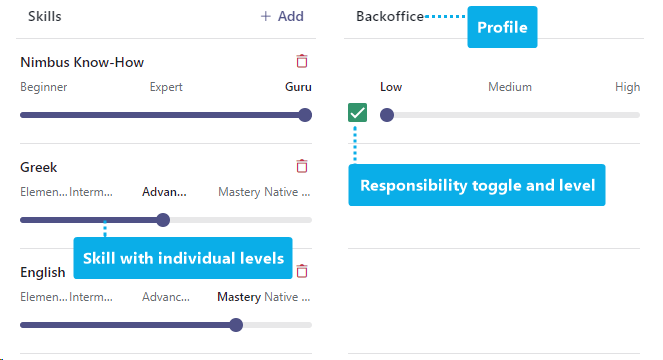
-
Use the Sliders to define the Skill levels
- 💡Note that skills with levels are always including previous stages. An Advanced user will also be considered as Beginner.
- You can require / exclude users when configuring your Distribution Profiles (e.g. to start support with "Native Speakers" first and gradually lowering the skill requirements). ☝ This is a very good point to double-check if your skills / categories / levels within the complete and in order. Once assigned to users they cannot be changed easily their levels are now being fixated.
-
Use Responsibilities as optional level
- 💡This means that you can define OPTIONALLY responsibility criteria in addition to existing skills level.
-
Continue to define levels and responsibility for each profile.
- 💡 Note that a user can have multiple Responsibility Profiles assigned, each with their own set / level of skills and responsibility.
- 💡You can add further profiles to a user via the Profiles tab.
Important: Levels and Distribution Policies
Distribution Policies define the skill requirements to your users. If your user does not fullfill the level criteria or lacks any of the skills, they will not be selected for calls.
Related to that: Note that responsibility - while optional on the user definition - will exclude the user from any Distribution Policies that define / demand levels of responsibility. Learn more about this on our Distribution Order page.
Related Steps
Skills assigned to a user will have no effect on call distribution until you perform the following related configuration steps:
- Don't forget to include newly required skills and responsibilties in your Distribution Policies. They will define the call escalation levels on your available user pool.
- Assign the Distribution Policy to the corresponding Contact Center licensed Service. This is done in the individual Service Settings > "Distribution" tab. Note that this only works on services where the User assignment type is "Skill-based".
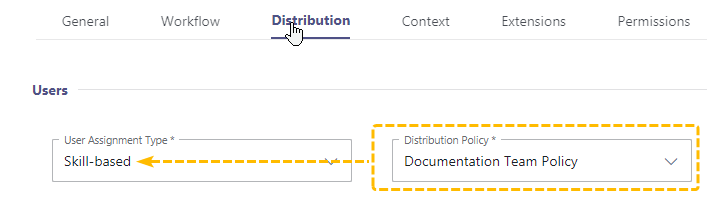
Profiles
Allows assignment of previously configured profiles to this user. 🔍 Learn more about this on: Responsibility Profiles.
✅ Preconditions
- The "Profiles" tab is only available when the user has a Contact Center license assigned in the "General" Tab.
- A profile relies on multiple User Skills and Responsibility Levels to be defined first.
NAR
Allows to assign Not Available Reasons to a user.
✅ Preconditions
- The "NAR" tab is only available when the user has a Contact Center license assigned in the "General" Tab.
- Reasons are defined in the Configuration as described on the Not Available Reasons page.
🔍 Reasons are selected by users within Assistant upon entering a "Not available" User State .
Interact
Interact User Settings
Preconditions
- Interact is enabled on tenant level. If this is not the case, ask your Admin or Luware Support to do this for you.
- To set up Interact for the first time Use Case - Setting up Interact needs to be completed. This allows customers to reach a user directly from external URLs (websites) via small chat or voice widgets.
- A Contact Center license needs to be assigned to the user to enable the Interact tab.
Editing Interact User Details
After the user has been granted a license, the Interact tab is visible and the option can be enabled.
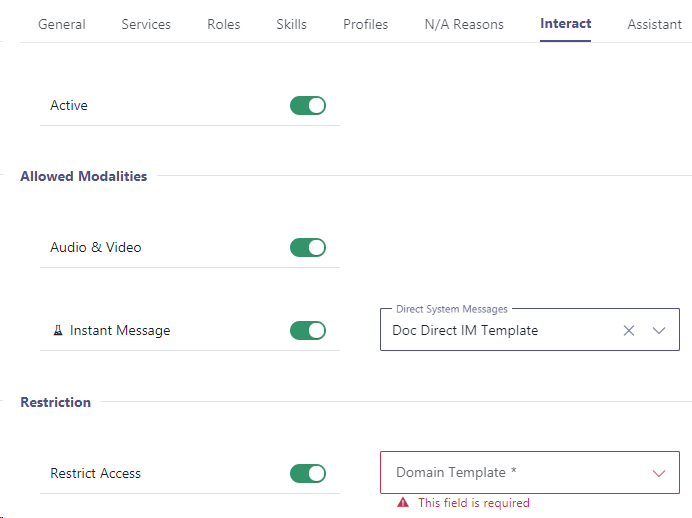
The following elements can be configured:
| Element | Description |
|---|---|
| Active |
✅ This feature needs to be enabled for your Tenant, see preconditions above. ☝ Note that Interact licenses (granted via General Tab) remain assigned to this user even when this is toggled inactive. |
| Audio & Video |
When enabled the user can be contacted via call modality using Interact. The Call Handling procedure is the same as regular Nimbus service calls. 💡Regular Nimbus distributed service calls will still reach this user despite of this setting. |
| Instant Messaging |
When enabled the user can be contacted via chat modality using Interact. The Chat Handling procedure is the same as regular service chats. 💡Regular Nimbus distributed service chats will still reach this user despite of this setting. |
| Direct System Messages |
Direct system messages configured in Admin > Configuration > Instant Messaging can be applied here. 💡These messages customize how this user name appears in chat and which custom messages are sent to that user and the customer they interact with. |
| Restrict Access |
✅You need to configure at least one Interact Domain Templates (CORS) for this option to be come available.
💡Domain templates act as whitelists:
|
| Domain Template | Lists configured Interact Domain Templates (CORS) available under the same Organization Unit as the current user. |
| User Snippet |
Default script with settings of current user, which is later can be inserted into a the web page and used as a contact widget.
👆 Please note that the Contact ID and WidgetKey are unique to the current user and should not be mixed up.
💡 For easy Snippet Code retrieval use the Copy button. ✅ To test contacting this user, use the use the preview link. |
Assistant
Assistant User Settings
Preconditions
The Nimbus Assistant license needs to assigned to a user for the settings to become visible. → See General User Settings. If you want to assign Nimbus Assistant licenses in Bulk, head over to License Management.
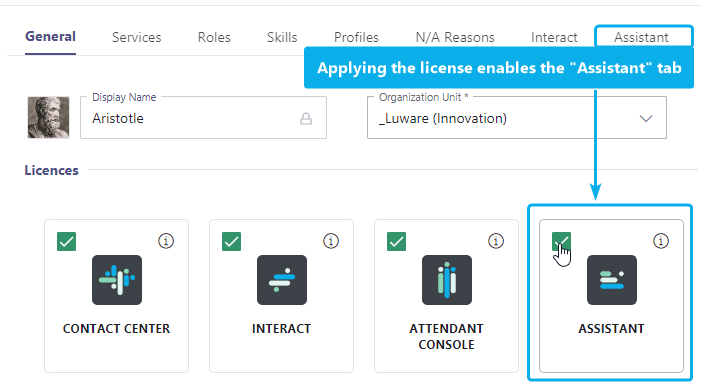
Nimbus Assistant Context and Templates
Allows to assign Direct Call Templates to the user. Template actions trigger only on direct calls to this user in particular.
Element |
Description |
|---|---|
| Direct Call Templates | ✅ Requires one or several configured Direct Call Templates to assign. By clicking "+Add", template items under the same Organization Units (or higher) can be assigned to this user.
💡 Note that the templates will be called in the order they were added to the list. You can drag and drop template items to change the order. |
🤔 Can I also assign Templates to Services? Yes Service Call Templates are similar in design to Direct Call templates, but are configured separately and applied on service level. Show me how to assign templates to a serviceTo assign templates that trigger on service call:
🤔 What is Conversation Context and how is it different to Templates?
| |
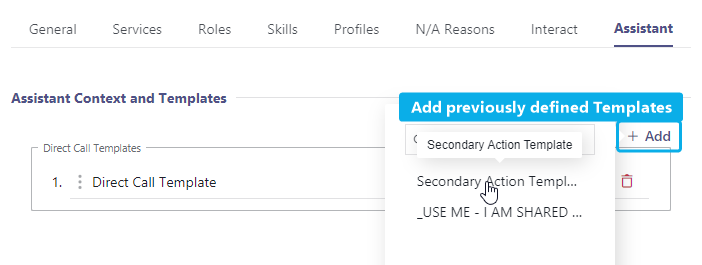
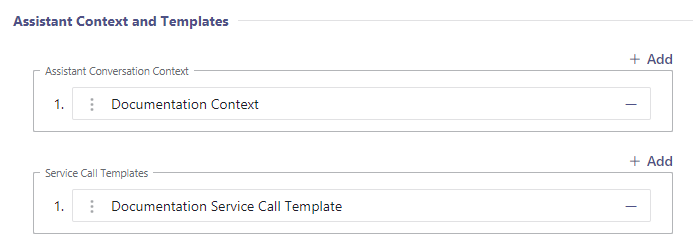
UI Profiles
UI Profiles User Settings
✅Preconditions:
- Requires a UI Profile to be created via Admin Portal > Configuration > UI Profiles.
💡You can directly create a new profile by clicking “Add”.
UI Profiles
Assigning a UI Profile to a User
- Navigate to Admin Portal > User Administration
- Select a user and open their configuration.
- Go to the UI Profiles Tab.
- In the UI Profiles section, select a UI Profile from the dropdown.
- Click Save.
⮑ The profile takes effect the next time the user logs in or refreshes the portal.
 Menu selection reduced and custom tooltips & icons.
|
 All menu items visible and default icons are sh own. |
💡Good to know:
- A user can have only one UI Profile assigned at a time.
- Profile changes take effect on the user's next login or page refresh, not mid-session.
- To assign the same profile to many users at once, use Bulk Editing by selecting multiple User's in the Administration list, instead of opening each user individually.
- If no profile is assigned, the user sees all pages (default behavior as per highest assigned Portal Role on the user).
User Configuration Export
Configuration Export
The Export Configuration feature allows Nimbus administrators to export user and service configurations as downloadable files in JSON or CSV format. This supports audits, backups, migrations, and support sharing without requiring technical Nimbus API expertise. Exports can cover a hand-picked selection of entries, everything within a specific Organization Unit, or the entire tenant.
Good to know
The export feature uses the Nimbus API to retrieve details. When triggered, the system:
- … iterates over all users or services visible to the logged‑in user. Note that related / referenced entity data may be visible in the export, not just the selected
- … calls the existing configuration read API per entry.
- … collects the full configuration payload.
- … aggregates the configuration into a single export file.
💡 Selection is always bounded by what you're authorized to see: administrators with access to only a subset of Organization Units will only be able to export entities within their permitted scope, even when exporting "everything visible."
Export Formats
The export supports two formats, selectable via the UI buttons:
| Format | Content-Type | Description |
|---|---|---|
| JSON | application/octet-stream |
Full structured JSON data with nested
|
| CSV | text/csv |
Human-readable flat CSV with one column per field1. Fields are taken from service / user settings respectively. 🔎The CSV format applies the following transformations:
1 Due to the nature of how Nimbus data entities are nested, some exports will not have the full level of detail (e.g. Nimbus user profiles will be exported, but not the skill levels per user per particular profile). → If you require the full details level for each entity, we strongly recommend to use the JSON export instead. |
Export Procedure
- Log into to Nimbus Admin Portal.
- Select either Services or Users to get to the overview.
- (Optional) Narrow down the list using the Organization Units filter (or other column filters). Any export triggered via Export All below will only include entries currently visible in the grid. Leave the filter at "All" to cover the entire tenant, or select a specific Organization Unit to scope the export to it.
-
Choose one of the following ways to export:
- Export everything currently visible: Click “Export All (JSON)” or “Export All (CSV)” in the top-right corner. This exports every entry matching your current filter — the entire tenant, or just the selected Organization Unit.
-
Export a hand-picked selection: Select one or several service / user entries via their checkboxes in the first column.
💡You can select entries across multiple pages.
⮑ A popup opens, presenting with additional options.
Click on “Export JSON” or “Export CSV”.
⮑ An exported text file is being generated and then downloaded by your browser.
Service Data
Service - JSON Export
Filename pattern: services-config-YYYYMMDD-HHmmss.json
Returns full structured data with nested objects per tab. Suitable for programmatic processing, Power Query import, or archival.
💡Example service export JSON file (collapsed and shortened for readability)
{
  "exportType": "Services",
  "exportedAt": "2026-04-02T07:04:20.0457135+00:00",
  "totalRequested": 2,
  "totalSucceeded": 2,
  "totalFailed": 0,
  "entries": [
    {
      "id": "91daad4d-1f3c-41a3-b7c7-5baa06349205",
      "displayName": "Documentation Team",
      "general": {
      "profiles": null,
      "skills": null,
      "roles": null,
      "nars": null,
      "assistant": null,
      "interact": null,
      "modalities": {
      "distribution": {
    },
    {
      "id": "86eb9d0e-5068-4e67-a89b-c3d0137ac8c2",
      "displayName": "Documentation Team Skill-based",
      "general": {
      "profiles": null,
      "skills": null,
      "roles": null,
      "nars": null,
      "assistant": null,
      "interact": null,
      "modalities": {
      "distribution": {
    }
  ],
  "errors": [],
  "organizationUnitNames": {}
}
Service - CSV Export
Filename pattern: services-config-YYYYMMDD-HHmmss.csv
Returns a human-readable flat CSV with one column per field. Designed for opening directly in Excel for filtering, sorting, and comparison.
| Column | Format |
|---|---|
| Service Name | Direct |
| Service Email | Direct |
| Organization Unit | Resolved to name |
| PSTN Enabled | Yes / No |
| PSTN Number | Direct or empty |
| Advanced | License normalization |
| Enterprise | License normalization |
| Contact Centre | License normalization |
| Interact (Add-on) | License normalization |
| Acceptance Time | Duration format |
| Hangup Time | Duration format |
| Short Conversation Threshold (s) | Integer |
| Service Call Enabled | Yes / No |
| Teams Channel | Direct or None |
| Mailbox | Direct or None |
| Workflow : Audio/Video | Name or None |
| Workflow : Outbound A/V | Name or None |
| Workflow : IM | Name or None |
| Workflow : Email | Name or None |
| Workflow : External Task | Name or None |
| Workflow : WhatsApp | Name or None |
| Workflow : SMS | Name or None |
| Transfer on Exit Target | Name or None |
| Distribution Policies | Semicolon-separated |
| User Assignment | All Users / Policy-Based |
| Distribution Priority | Enum name |
| ACW Enabled | Yes / No |
| ACW Duration | Duration format |
| ACW Allow Stop | Yes / No |
| ACW Allow Extend | Yes / No |
| Persistent RONA | Yes / No |
| RONA Reset Time | Duration format |
| Available When Busy | Yes / No |
| Available When Away | Yes / No |
| Default Enability | Yes / No |
| Emergency Redirect | Yes / No |
| Emergency Redirect Destination | Direct or empty |
| Hide User Statistics | Yes / No |
| Show on Historical Page | Yes / No |
Exporting User Data
User - JSON Export
Filename pattern: users-config-YYYYMMDD-HHmmss.json
Returns full structured data with nested objects per tab. Suitable for programmatic processing, Power Query import, or archival.
💡Example user export JSON file (collapsed and shortened for readability)
{
  "exportType": "Users",
  "exportedAt": "2026-04-02T06:27:49.7303885+00:00",
  "totalRequested": 2,
  "totalSucceeded": 2,
  "totalFailed": 0,
  "entries": [
    {
      "id": "344473b3-9250-401f-bce9-72497533118a",
      "displayName": "Ada Lovelace",
      "general": {
      "profiles": {
      "skills": {
      "roles": {
      "nars": {
      "assistant": {
      "interact": {
      "modalities": null,
      "distribution": null
    },
    {
  ],
  "errors": [],
  "organizationUnitNames": {}
}
User - CSV Export
Filename pattern: users-config-YYYYMMDD-HHmmss.csv
Returns a human-readable flat CSV with one column per field. Designed for opening directly in Excel for filtering, sorting, and comparison.
| Column | Format |
|---|---|
| Display Name | Direct |
| First Name | Direct |
| Last Name | Direct |
| Direct | |
| Organization Unit | Resolved to name |
| Contact Centre | License normalization |
| Attendant Console | License normalization |
| Assistant | License normalization |
| Instant Messaging | License normalization |
| Email (License) | License normalization |
| Audio/Video | License normalization |
| Web Interact | License normalization |
| External Task | License normalization |
| Companion | License normalization |
| Skills | Semicolon-separated; None if empty |
| Active Profile | Single value |
| All Profiles | Name (Default, Active); Name |
| Roles | Friendly Name ( OU ); … semicolon-separated |
| Task Parallelization | Yes / No |
| NARs Enabled | Yes / No |
| Interact Enabled | Yes / No |
| Interact AV | Yes / No |
| Interact IM | Yes / No |